I restarted my iPhone hoping the temporary files would clear out, but they’re still taking up storage. I’ve already tried the basic steps and I’m not sure what to do next. I need help figuring out how to delete temporary files on iPhone safely without losing important data.
I’ve had the same thing happen. You restart the iPhone, open Storage again, and the System Data bar sits there like nothing changed. Annoying, but there’s a reason for it.
Why a restart barely helps
A reboot clears memory and stops stuck background stuff. It does not wipe app caches. iPhone stores cached web files, streamed media chunks, message attachments, and app leftovers in separate storage areas. Safari does it. Spotify does it. TikTok does it. Messages does it too. iOS keeps those files because they speed things up the next time you open the app. It does not treat them like trash unless free space gets low enough.
Why the junk comes back fast
This part threw me off at first. You clear space, use the phone for a bit, then storage starts swelling again. That is normal behavior. Every time an app pulls in content from the web, it builds cache again. Videos, thumbnails, scripts, images, temp downloads, all of it. So yes, cleanup works, but only for what had piled up before. The next app session starts building a new pile. You’re not ending the cycle. You’re trimming it before it starts dragging the phone down.
Why System Data often jumps after an iOS update
Updates leave a mess more often than people think. The phone downloads install packages first, then unpacks them, then keeps some logs and leftover files around after install. Most of it gets cleaned up on its own. Some of it sticks for a while. If you saw System Data grow right after updating, I wouldn’t treat it like a bug right away. I’ve seen it settle later, and I’ve also seen it stay bloated longer than expected. Restarting after the update helps a little, not much.
Does offloading apps fix cached junk?
Not fully. Offloading removes the app binary, so you get some space back. Your documents and saved data stay on the phone. In a lot of cases, cached files stay tied to that saved data too. If your goal is a full wipe of one app’s junk, offloading is weak. Deleting the app and installing it again works better.
If you cleared temp files and the phone still feels slow
This is where I wasted time. I kept clearing browser data and random app caches, but the phone still felt sluggish. The bigger problem was Photos.
For most people, storage gets eaten by stuff they forgot existed. Burst shots. Five versions of the same pic. Old screen recordings. 4K clips from years ago. Screenshots you meant to send once and never look at again. When free storage stays cramped, iPhone loses breathing room for background tasks, indexing, updates, and app switching. That lag sticks around.
A few things I’d do first:
- Go to Settings, Apps, Safari, then tap Clear History and Website Data.
- Open Files, tap Browse, then On My iPhone, then Downloads. Delete old files you don’t need.
- Go to Settings, Messages, Keep Messages, then switch it from Forever to 1 Year or 30 Days.
When manual cleanup still isn’t enough
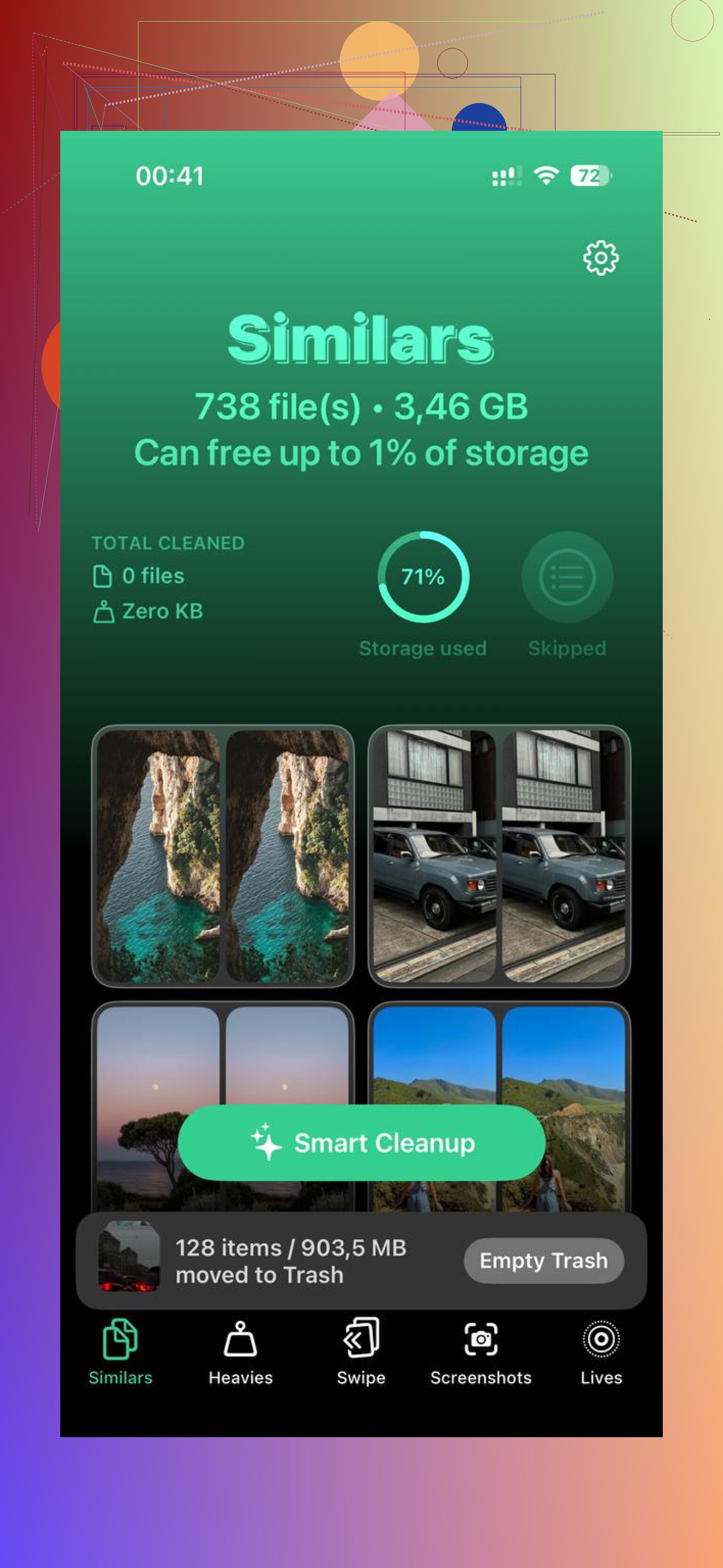
The part manual cleanup misses most often is your photo library. That’s where Clever Cleaner comes in. I used it because sorting Photos by hand on a packed phone is miserable.
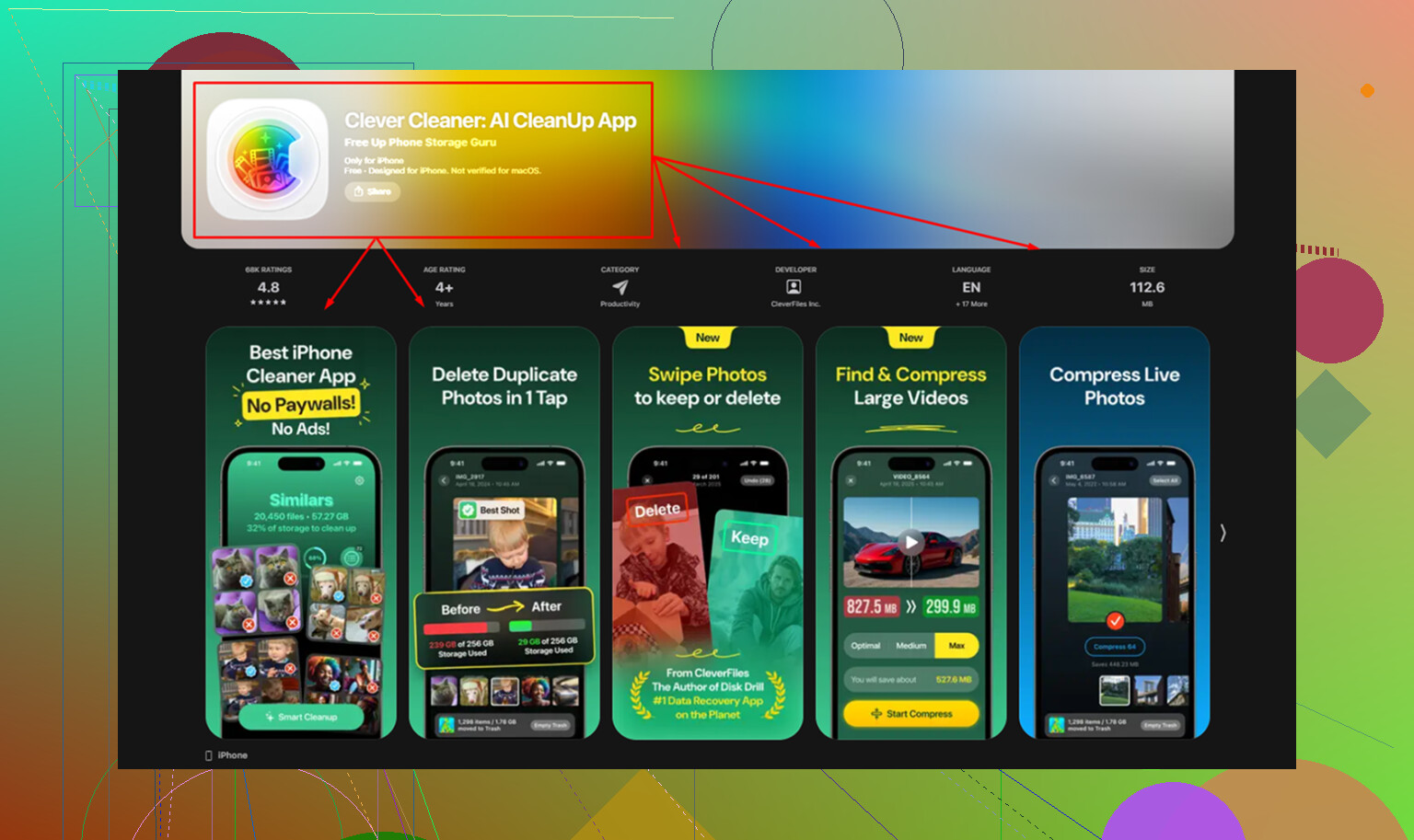
What stood out to me was the Heavies section. It lists the biggest files first and shows the file sizes, so the worst offenders show up fast. No scrolling through years of junk. The Similars section groups near-duplicate photos, not only exact copies. Good for burst sets and those three or four nearly identical shots where you only need one. From what I saw, processing stays on the device.
After I cleaned out duplicate shots and large videos, the phone stopped feeling jammed up. One thing people miss, and yeah I missed it too, is this part. Open Photos and empty Recently Deleted. If you skip tht, the files still sit there for 30 days and still count against storage.
1 Like
Restarting helps RAM. It does almost nothing for stored cache. @mikeappsreviewer is right on that part. I’d push one step further though, System Data staying high for days is not always “normal.” Sometimes iOS gets stuck hanging onto logs, update files, or failed sync junk.
Try this order.
-
Check for a stuck iOS update file.
Settings, General, iPhone Storage.
If you see an iOS update listed, delete it. -
Resync Messages and Mail.
Large attachments sit there forever.
Settings, your Apple Account, iCloud, turn Messages off, wait, turn it back on.
Same idea for Mail accounts with huge local cache, remove the account, add it back. -
Force Safari’s offline reading list purge.
Settings, Apps, Safari.
Turn off Reading List sync.
Delete offline saved pages if you use them. -
Clear app data the hard way.
Offload is weak. Delete the worst apps by size, reinstall them.
Streaming, social, map apps are usualy the pigs. -
Files app cleanup.
Browse, On My iPhone, Downloads.
Then check Recently Deleted inside Files too. People miss this alot. -
If System Data is still bloated, do an encrypted backup to a Mac or PC, erase the iPhone, restore from backup.
This is the one fix that works when temp files are stuck deep in iOS.
If the bigger issue is hidden media eating space, use Clever Cleaner. It’s better for photos and large videos than poking around cache menus one by one. Also, this short guide on how to clear iPhone temporary files and free storage fast walks through the process cleanly.
One more thing. Leave 10 percent to 15 percent free storage. If your phone sits near full, temp data builds faster and cleanup works worse. It’s dumb, but yep, taht’s iPhone storage for you.
Restarting mostly clears RAM, not the junk that iOS labels weirdly under System Data or app storage. I agree with @mikeappsreviewer on that part, but I kinda disagree that you should jump straight to a full erase unless the number is truly stuck for days.
A couple things people skip:
- Open Photos and let it sit on Wi‑Fi and power for a while. Seriously. iOS does cleanup/indexing in the background and sometimes storage numbers are delayed.
- Check Podcasts, Music, TV, and any streaming app for downloaded media. That stuff often gets mistaken for “temp” files.
- In Settings, Accessibility, Spoken Content, see if you downloaded voices. Those can be huge and easy to miss.
- If you use Chrome/Firefox/Edge, clear data inside those apps too, not just Safari.
- Open Notes and delete big scans or attachments. Same with Voice Memos.
Also, storage graphs can lag or be flat-out buggy for a bit after updates. Annoying, but true. If the real issue is hidden media clutter rather than cache, Clever Cleaner is worth a look for finding large videos, duplicates, and similar photos faster than digging manually. And if you want a clear walkthrough, this step by step iPhone temporary files cleanup guide covers the process pretty well.
If the storage number does not move after 24 to 48 hours on charger + Wi‑Fi, then yeah, you’re probly in backup/erase/restore territory. Annoying fix, but sometimes that’s the only thing taht resets bloated System Data.
I’d add one angle the replies from @sonhadordobosque, @mike34, and @mikeappsreviewer only touched lightly: sometimes the “temporary files” are not really temp anymore. They get counted as databases, indexes, or corrupted local snapshots, so normal cleanup never touches them.
A few things worth checking that are different from the usual cache steps:
- WhatsApp, Telegram, Discord: open each app’s own storage manager. These apps hide gigabytes in chats, stickers, voice notes, and cached videos.
- Apple Books and PDF apps: downloaded PDFs and audiobooks often get forgotten.
- GarageBand, iMovie, CapCut, Lightroom: project render files can be huge.
- Siri voices, dictionaries, translation packs, keyboard languages: all can quietly eat storage.
- iCloud Drive sync stalls: if Files is trying and failing to upload/download, local temp copies can linger.
One thing I slightly disagree on: waiting 24 to 48 hours is fine after an update, but if storage is critically full right now, waiting can make the phone behave worse. In that case, remove one or two giant media chunks first so iOS has breathing room.
If you want the fastest way to find hidden media, Clever Cleaner is useful for photos and videos.
Pros:
- quick view of large files
- good for duplicates and similar shots
- easier than digging through Photos manually
Cons:
- won’t fix true iOS System Data bugs
- less helpful for non-photo app junk
- you still need to review before deleting
So my order would be: inspect chat apps, creative apps, offline packs, then Photos/media with Clever Cleaner, and only after that consider backup and restore.