I turned on Live Photos on my iPhone by accident and now a lot of my pictures have motion and sound. I want to remove the Live part without deleting the actual photos, but I’m worried I’ll lose important pictures if I do it the wrong way. What’s the safest way to delete Live Photos and keep the original images?
I dealt with this with a friend’s iPhone not long ago. They had years of Live Photos piled up and thought the only choices were to keep every single one or wipe them all. Nope. There’s a middle option.
The first thing I asked them was simple. Do you want to keep the still pictures, or do you want all of it gone? Your answer changes the whole process.
If you do not care about saving the images and want the Live Photos removed entirely, do this:
- Open Photos.
- Go to Media Types > Live Photos.
- Tap Select.
- Pick the items you want gone.
- Delete them.
- Clear Recently Deleted, or your storage will not come back right away.
If you want to keep the photos but strip out the motion part, I would not do it by hand unless your library is tiny. A few pics, sure. Hundreds, no thanks. I saw how annoying it gets after a minute or two.
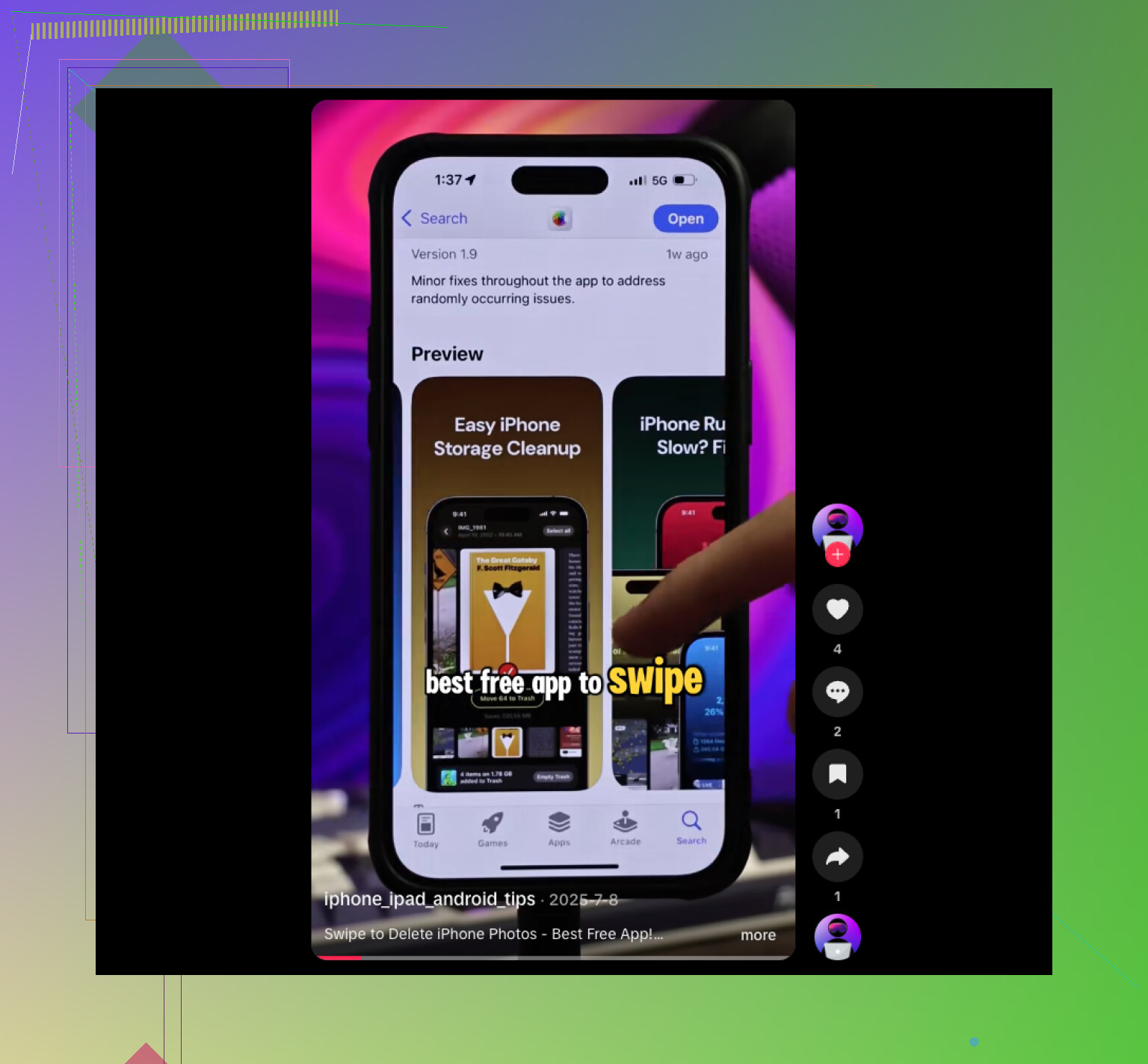
What worked in our case was Clever Cleaner. We opened it, went into the Lives section, selected the Live Photos, then hit Compress. The label is a bit weird, because it does more than shrink file size. It makes normal still-image copies, then lets you decide whether to keep or remove the original Live Photos.
Here’s the flow we used:
- Open Clever Cleaner.
- Tap Lives.
- Sort by date or file size.
- Select the Live Photos you want to convert.
- Tap Compress.
- Check the new still versions.
- Delete the original Live Photos if the results look fine.
The part I liked most was how all the Live Photos were grouped together in one place. No bouncing around inside Apple’s Photos app, no digging. It also showed the storage savings before we removed anything, which helped because space was the whole reason we started this mess.
Then we kept going. In Similars, there were duplicate shots all over the place. In Heavies, a few giant videos were sitting there hogging space. There were also tons of old screenshots, the usual junk nobody looks at agian. We started with Live Photos, but the extra cleanup freed even more storage.
So yeah, if you’ve got 10 or 20 Live Photos, the built-in Photos tools are fine. If your phone is loaded with a few hundred or more, using something like Clever Cleaner is a lot less tedious. You spend less time tapping around, and you keep the still photos without dragging along the motion clips.
1 Like
Do not delete the photos from Photos if you want to keep the still image. Deleting a Live Photo removes the whole item, not only the motion part. That’s the part people miss.
Best safe route first:
- Duplicate a few important Live Photos.
- Open one copy.
- Tap Edit.
- Tap the Live icon.
- Choose a key photo.
- Turn Live off.
- Save it.
- Check if your iPhone keeps the still version the way you want.
If that test looks fine, do more. I’d test 5 to 10 pics before touching the rest. Less risk, less panic.
I slightly disagree with @mikeappsreviewer on one thing. I would do a small manual test even if you plan to use an app. It shows you exaclty what iOS does on your phone first.
If you have a big library, Clever Cleaner makes more sense for batch cleanup. Faster. Less tapping. Better if storage is tight too.
Also, turn Live Photos off in the Camera app so new shots stop saving with motion. That setting sticks.
For extra help, this covers tips to clear photos on iPhone in a cleaner way, smart iPhone photo cleanup tips.
Short version. Test on copies first. Then batch the rest. That keeps your important pics safe.
One thing I’d add to what @mikeappsreviewer and @shizuka said: turning Live off on a photo does not always magically shrink storage right away in the way people expect. It keeps the photo, yes, but sometimes the space savings are meh unless you actually replace or remove the Live version. That’s the part that trips people up.
If your main fear is losing pics, do this first:
- make sure iCloud Photos is synced
- or back up the phone
- then test on 2 or 3 unimportant Live Photos before touching the important ones
Also, I would not mass delete anything directly from the Photos app unless you are 100 percent sure, because deleting a Live Photo deletes the whole item. Pic included. Kinda dumb, but that’s Apple being Apple.
My take:
- Small batch? Edit them one by one and switch off Live.
- Big batch? Use something made for sorting them faster.
That’s where Clever Cleaner makes more sense, esp if you’ve got a ton of them and want to keep the still images while cleaning up the Live versions. It’s less annoying than digging through Photos forever. If you’re comparing options, this thread on best free iPhone cleaner apps for photo cleanup is worth a look too.
And yeah, after you fix the old ones, turn off Live Photos in the Camera app or this whole circus starts again lol.
One thing I’d add to what @shizuka, @viajeroceleste, and @mikeappsreviewer said: if these photos are in shared albums, messages, or already exported elsewhere, turning off Live on the copy in Photos does not retroactively change those other versions. People fix the library copy and then wonder why the “Live” version still shows up in a text thread.
My safer angle would be:
- export a few important Live Photos to Files first
- check whether you care about the exact key frame, metadata, and timestamp
- then decide whether you want edited originals or separate still-image replacements
That distinction matters. Sometimes the issue is not “remove Live” but “keep this exact frame as the photo.”
For bigger libraries, Clever Cleaner is useful mostly because it helps you review in bulk instead of hunting manually.
Pros: faster sorting, easier batch review, can surface storage hogs besides Live Photos.
Cons: still needs you to verify results, another app in the workflow, and batch cleanup can make mistakes if you rush.
So I slightly disagree with the “just compress and delete originals” mindset. Fine for clutter, maybe not for irreplaceable family shots. For those, I’d preserve a small exported backup first, then clean. Also disable Live in Camera going forward, or this repeats.