I lost important GoPro footage after my SD card suddenly stopped working, and I’m trying to figure out the best way to recover the videos without making things worse. I need help with safe GoPro footage recovery steps, SD card troubleshooting, and whether recovery software actually works.
I’ve had this happen after a long day out, got home, pulled the card, and then saw the clips were gone. It feels bad fast. The first move matters more than people think.
Do this before you try to recover anything
Take the SD card out of the GoPro and stop using it.
Don’t shoot more footage. Don’t format the card again. Don’t run random “repair” tools. When videos get deleted or the card gets formatted, the data often still sits there for a while. New recording is what tends to ruin the easy recovery path.
I’d check the simple stuff first, because sometimes the file isn’t gone, it’s somewhere dumb:
- GoPro cloud storage, if your account has Auto Upload turned on
- Trash or Recently Deleted in your GoPro account
- The camera screen for a “Repair File” message
- LRV preview files still sitting on the card
- A different card reader or another computer, since flaky readers waste a lot of time
Then look at the card itself. If no device sees it, if it gets hot, if it keeps dropping connection, if plugging it in locks up the system, or if the card looks damaged, I’d stop there. At that point I’d lean toward a recovery lab. Physical card failure is a different mess than accidental deletion.
Why action camera recovery gets ugly
This part trips people up. A lot of file recovery apps do fine with photos, PDFs, and ordinary files. Action cam video is rougher.
GoPro footage is often not stored as one clean block. The camera writes video streams, audio, preview data, metadata, GPS info on some setups, and other bits in parallel. So one clip might be split into a pile of fragments across the card.
I’ve seen recovery tools find those fragments and still produce junk output. The scan looks promising, then the recovered file won’t play or cuts out halfway.
Typical results from weaker tools:
- Video files that refuse to open
- Recovered clips with chunks missing
- Playback corruption, freezing, green frames, broken audio
- MP4 files that look normal in the folder but fail in VLC or Premiere
So yeah, recovering GoPro, DJI, or Insta360 footage is often harder than recovering office files or vacation photos. Different problem.
If I were starting from scratch, I’d try Disk Drill first.
The reason is pretty specific. Its Advanced Camera Recovery mode was built for fragmented camera footage. From what I’ve seen, it pulls in tech from the older GoProRecovery and CnW Recovery tools people used for years for this exact kind of case. The current version covers more devices and more file systems, which matters if your setup isn’t plain vanilla.
The basic flow is short:
- Put the SD card in a card reader
- Open Disk Drill
- Pick Advanced Camera Recovery
- Scan the card
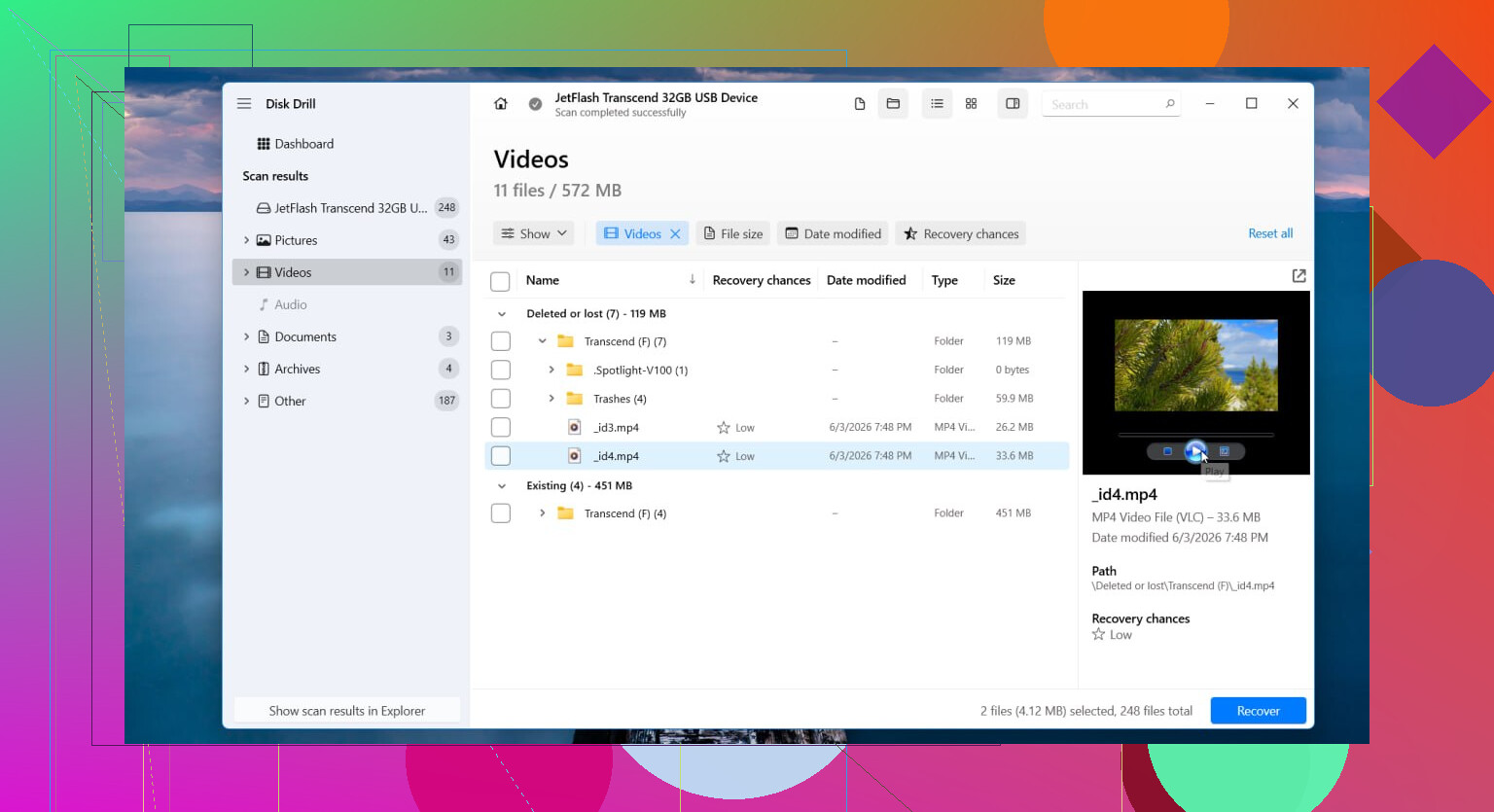
- Preview what it found
- Save recovered files to another drive, not back to the same card
The preview part is useful. A lot of apps will list “recoverable” videos, then you save them and find out they’re dead. Being able to check whether the clip plays before recovery saves a lot of guessing. I learned this the hard way once and wasted an hour exporting trash files.
Other options exist, of course:
- PhotoRec is free and good at brute-force file recovery. The tradeoff is mess. For GoPro clips, you might end up with a mountain of files and no clean reconstruction of fragmented footage.
- UFS Explorer is strong, especially in harder cases. It also feels like a tool made by people who assume you already know what you’re doing. Good software, less friendly.
If the issue is modern fragmented camera video, I’d still start with Disk Drill before those two.
When I’d stop doing it myself
DIY software works best when the problem is logical, not physical. Stuff like deleted clips, accidental format, corrupted file system, those are the usual software cases.
I’d quit the home-recovery route and talk to a pro if:
- The SD card has physical damage
- No computer detects the card at all
- The card keeps disconnecting
- The GoPro throws card errors every time
- The recovery software freezes or fails before finishing a scan
- The footage matters enough that losing it would hurt more than the lab bill
Labs cost more, yeah. Still, they have hardware tools and procedures regular software doesn’t. If the card itself is failing, software often does nothing except stress it more.
If your case is plain deletion or formatting, the odds are usually better than people expect, especailly if you stopped using the card right away. If the card hasn’t been written to much since the clips vanished, there’s still a decent shot at getting them back.
1 Like
If the card still shows up in Windows or macOS, make an image of it first. This is the part people skip. Use a byte-for-byte copy tool and work from the image, not the SD card. If the card is unstable, every extra read matters. On Mac or Linux, ddrescue is the usual pick. On Windows, USB Image Tool or similar works fine. Save the image to your SSD or hard drive.
I slightly disagree with @mikeappsreviewer on one point. I would not start by scanning the original card if the footage matters a lot. Image first, scan second. Safer.
After you image it, run recovery on the image file. Disk Drill is a solid option for GoPro footage recovery, especailly when clips were deleted or the file system got messed up. If the scan shows fragmented MP4 files, preview a few before saving. Export recovered files to a different drive.
Also check for file system issues without ‘repairing’ the card. On Windows, open Disk Management. If the card shows RAW or unallocated, that points to file system damage, not always dead hardware. On Mac, System Information will tell you if the reader sees the card even when Finder does not.
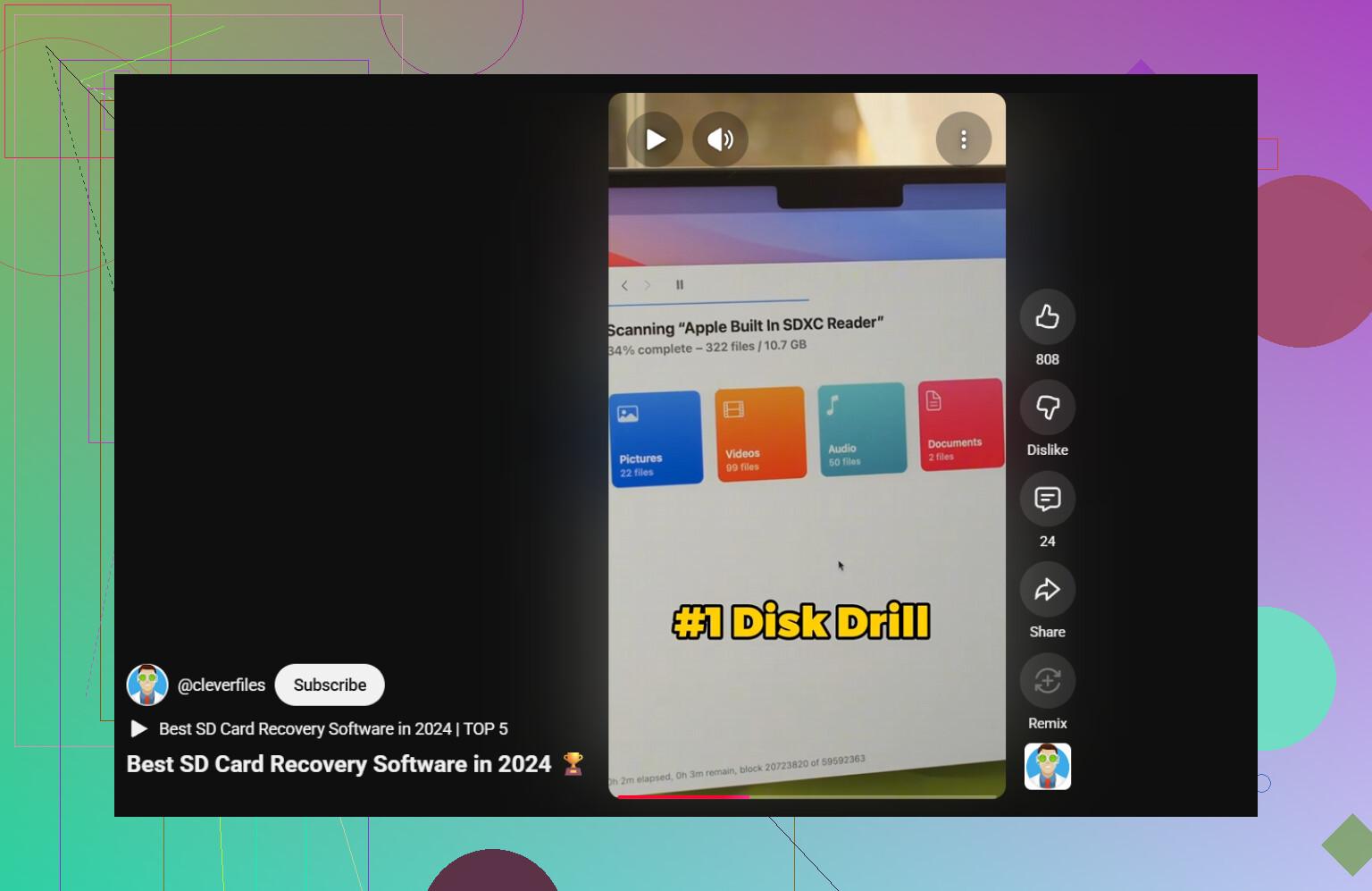
If you want a quick explainer, watch safe SD card recovery software tips for lost GoPro videos.
Best SD card recovery software for deleted videos and corrupted memory cards is the phrase I’d use when searching. Short, clear, and easier to filter useful results.
One more thing. If the card capacity suddenly reads 0 bytes, asks to be initialized, or reports fake size changes, stop there. Those are bad signs. At taht point, a lab is the safer move.
I’m with @waldgeist on one thing: if the card still mounts at all, imaging it first is the safest play. I actually disagree a bit with @mikeappsreviewer about jumping straight into a scan on the card itself when the footage is truly irreplaceable. Tiny difference, but it matters.
What I’d add is this: check whether the problem is the card or the video container. GoPro files sometimes “vanish” when the MP4 header gets messed up after a battery pull/crash. In that case, recovery apps may find the data, but the clips still won’t open normally. Try copying any visible MP4s off the card first and test them in VLC or with an MP4 repair tool before going full forensic mode.
Also, avoid CHKDSK / First Aid repair attempts right now. People do this becuase Windows nags them, and it can make a messy card messier.
If the card is readable, my order would be:
- Make an image of the SD card
- Work only from the image
- See if normal files are still there but unplayable
- Then use something like Disk Drill for GoPro footage recovery, especially if clips were deleted or the card got formatted/corrupted
- Save recovered files somewhere else
One more practical thing people skip: if you had chaptered GoPro files, look for matching THM/LRV leftovers. They sometimes help confirm what clips existed and their timing even if the full res file is busted.
For extra reading, this thread on best SD card video recovery advice for home videos is worth a look.
If the card disconnects, shows 0 bytes, or gets weirdly slow, stop DIY stuff. That’s where poeple burn their last chance.
Small add-on to what @waldgeist, @nachtdromer, and @mikeappsreviewer already covered: check the GoPro itself before blaming the card.
Sometimes the footage is fine, but the camera database/index is broken. Put the card back in the GoPro, power it up on external power, and see whether the camera offers any file repair or can still play thumbnails. If the camera sees clips that your computer does not, copy via USB first. I know some people hate MTP transfers, but for a few visible files it can be safer than poking a flaky card over and over in a cheap reader.
I also slightly disagree with the “preview everything” advice. Preview is useful, sure, but on an unstable card I would keep that to a minimum because every extra read is still a read. Better to verify a couple of key clips than stress-test the whole thing.
If you get files back but they will not open, try remuxing before assuming they are dead:
- ffmpeg can sometimes rebuild the container
- VLC may play files other apps reject
- untrunc-style repair can help if the MP4 header is missing and you have a similar sample file from the same GoPro settings
About Disk Drill specifically:
Pros:
- easy UI
- decent with deleted files and damaged file systems
- useful for GoPro footage when fragmentation is involved
- preview support helps spot obvious junk
Cons:
- not magic on physically failing cards
- deep scans can return lots of messy results
- paid recovery for full use
- less transparent than some lower-level tools if you want forensic control
So my order would be: test another reader, see if the GoPro itself can still access the files, image if stable enough, then run Disk Drill or another recovery tool on the image, and only after that try container repair on any half-broken MP4s you recover. If the card hangs the system or vanishes mid-read, stop DIY.