My iPhone storage is almost full, and I think my Photos app is taking up a lot more space than I expected. I checked the basic storage settings, but I’m not sure where to find the exact photo storage usage or what counts toward it. I need help figuring out how much storage photos are using on my iPhone so I can free up space without deleting the wrong things.
I kept getting the “Storage Almost Full” alert, and after a while it stopped feeling like a warning and started feeling like a threat. Worse part, I hadn’t installed much. My phone still slowed down, apps hung, scrolling got choppy, the usual mess.
If you want the full breakdown, go to Settings, then General, then iPhone Storage. That screen tells the real story. At the top, there’s a color bar showing how your space is split between apps, photos, media, system data, and the rest. Under it, iPhone usually throws out a few cleanup suggestions, like offloading apps you forgot existed or checking giant message attachments.
If all you need is the short version, open Settings > General > About. Scroll until you see Capacity and Available. Small thing people miss, the listed capacity often looks lower than what Apple sold you on the box. iOS takes its share first, often around 8GB to 10GB, so the number you see on the phone won’t match the marketing number.
I also checked from a computer when the phone numbers looked off. On a Mac, use Finder. On Windows, use the Apple Devices app or iTunes. For me, this view felt steadier. Sometimes the phone-side storage graph lags behind because of cached junk. Plugging it in and letting it sync seemed to clear some of that temporary clutter before showing the totals.
One bit that trips people up, your iPhone storage and your iCloud storage are two separate buckets. Having free iCloud space does not mean your phone has room. To check iCloud, tap your name at the top of Settings, then open iCloud. If photos are eating your phone alive, look at your iCloud Photos settings and turn on Optimize iPhone Storage. That keeps full-size originals in iCloud and leaves smaller versions on the phone.
Then there’s System Data, old name was “Other,” and it tends to sprawl. Caches, Siri voices, fonts, temp files, random leftovers, it adds up fast. I’d also open each large app from the iPhone Storage list and compare App Size with Documents & Data. Some apps stash a ton of junk there. Telegram and Netflix were two I checked first, since both keep downloaded stuff tucked away inside their own settings.
A few months back, my iPhone got slow enough that I noticed it every time I unlocked it. Apps crashed. Swiping between screens felt delayed. In my case, low free space was the main reason. iOS seems to hate running with no room left for temporary files, and performance drops hard when storage gets squeezed.
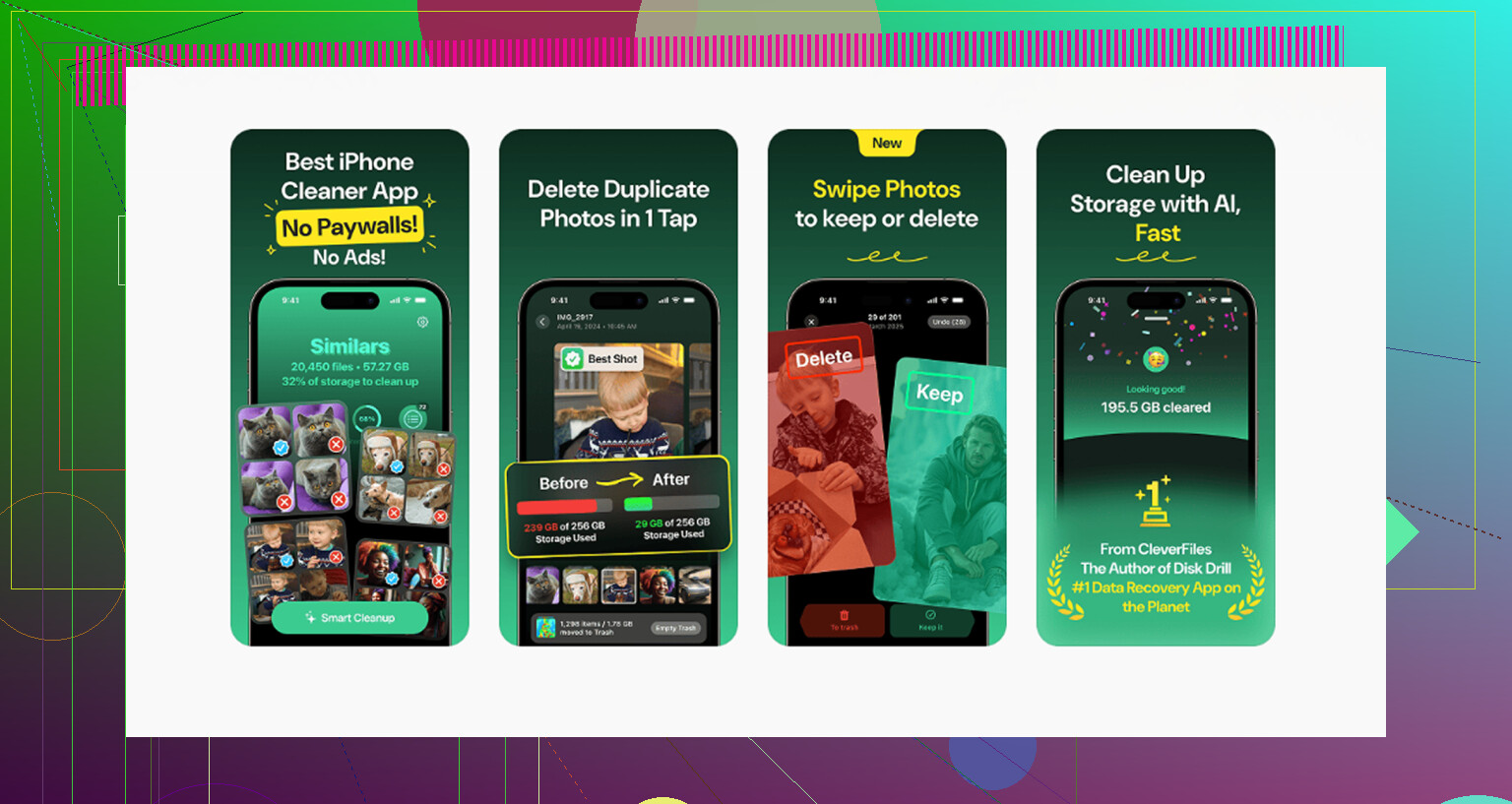
I tried cleaning it up by hand. Bad idea. Deleting photos one by one took forever, and I still missed a lot of duplicate junk. I ended up using Clever Cleaner. What stood out to me, no ads, no fake free trial, no paywall buried three menus deep. I didn’t run into the usual nonsense.
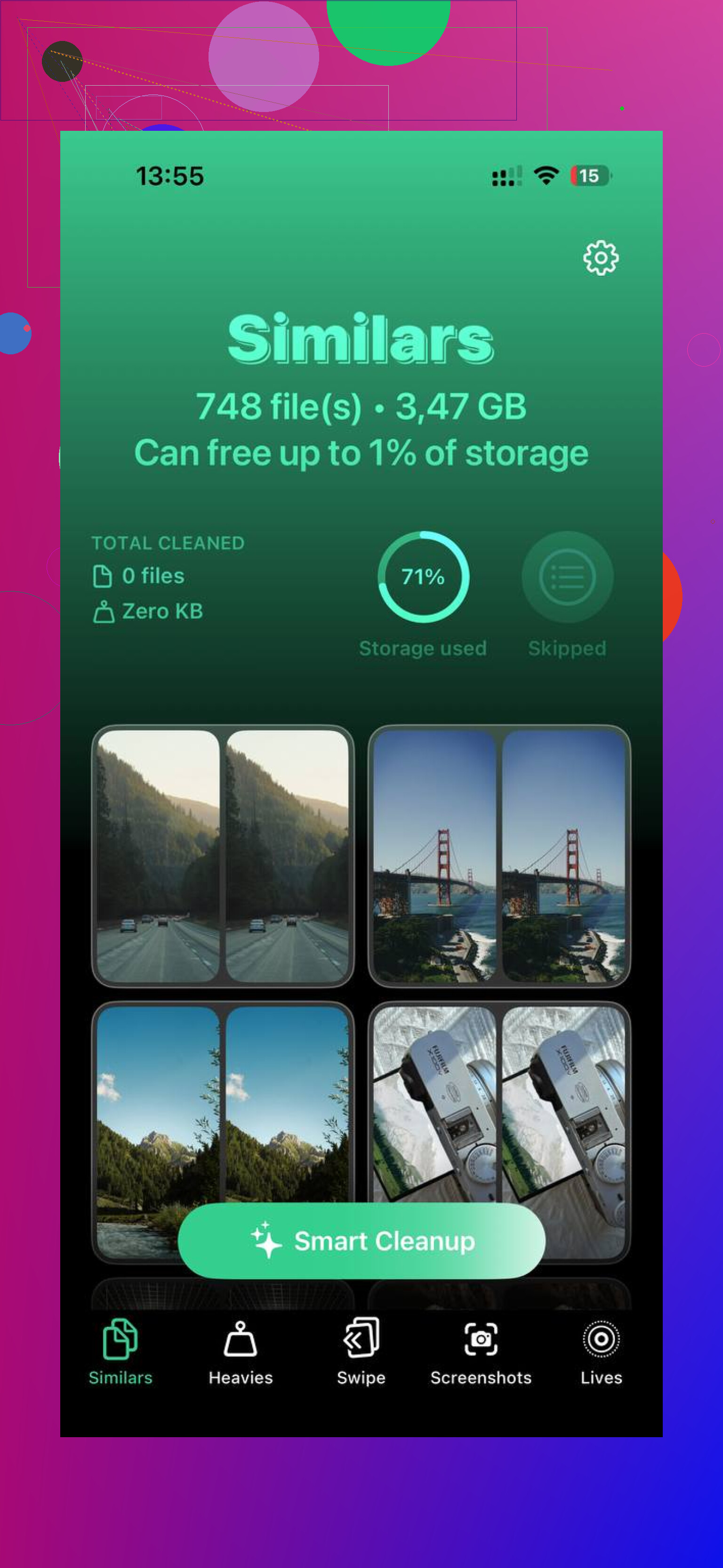
Its Similars section helped most, since my camera roll is full of five near-identical shots of the same thing. The Heavies section was useful too. It sorted media by file size, which made old giant videos easy to spot. I liked one small detail, it shows exact sizes for screenshots, so cleanup feels less like guessing. From what I saw, it handles processing on the device, so photos aren’t being shipped off somewhere else.
After I cleared space, the lag dropped off fast. So yeah, first step is still the built-in iPhone storage screen. Check what’s taking over. But if your phone feels slow, don’t shrug it off. Low storage is often the whole problem, and clearing some room fixes more than people think. Typos aside, that’s what worked for me.
1 Like
Photos storage is split across a few places, and Apple does not label it super well.
What counts under Photos on iPhone:
- Photos and videos in the Photos app.
- Recently Deleted items, until they are removed.
- Some synced media from iCloud Photos.
- Thumbnails, caches, and edited versions.
If you want the closest thing to the exact number, open Settings, then Apps, then Photos. On newer iOS versions, you may see the storage impact there. If not, the better clue is inside Settings, then General, then iPhone Storage, then look for Photos in the app list. Tap it. You should see how much space the app data is using. Apple sometimes rolls part of it into system-style cache, so the number is not always perfct.
One thing I sort of disagree with from @mikeappsreviewer. Checking from a computer is fine, but it does not always help if your goal is photo-specific cleanup. It gives a broader device view, not a clean breakdown of duplicates, screen recordings, or giant Live Photos.
A faster check:
- Open Photos.
- Scroll to Media Types.
- Look at Videos, Live Photos, ProRAW, Bursts, Screenshots.
- Then open Utilities and check Duplicates.
- Empty Recently Deleted.
Videos are usualy the real storage hog. A 1 minute 4K60 video can take hundreds of MB. ProRAW photos are huge too.
If you want an easier cleanup tool, Clever Cleaner is worth a look. This review explains why Clever Cleaner stands out as a top free iPhone cleaner app, see why Clever Cleaner is a top free iPhone cleaner app. It helps spot duplicate photos and large files faster than doing it by hand.
The annoying part is Apple shows you category storage, not a neat “your actual camera roll is exactly X GB” number in every spot.
A couple things to know that @mikeappsreviewer and @reveurdenuit didn’t really emphasize enough:
- Edited photos can take extra space because iPhone may keep the original plus edit data.
- Shared Library and synced items can muddy the number a bit.
- If you use iCloud Photos with Download and Keep Originals, your phone can balloon fast even if stuff is “in iCloud.”
- Recently Deleted absolutely still counts until you clear it.
If you want a more photo-specific reality check, go inside Photos and look at your biggest offenders by type:
- Videos
- Live Photos
- Bursts
- RAW / ProRAW
- Screen recordings
- Screenshots
That usually tells the real story faster than staring at the storage bar and pretending “System Data” is gonna explain itself.
Also, slight disagreement with the “exact number” idea: on iPhone, there often isn’t a perfectly exact number for Photos because caches, thumbnails, and optimized versions shift around. So if the number seems weird, that’s normal. Kinda dumb, but normal.
Best practical move:
- Check Recently Deleted
- Review Videos first
- Check Duplicates
- Look for giant Live Photos and bursts
- If you want it done faster, use Clever Cleaner to scan duplicate/similar shots and heavy media
If you want a solid outside review, this one is easy to read: see how Clever Cleaner helps free up iPhone photo storage
Honestly, videos are usualy the killer, not normal photos. That’s where I’d check first.