My iPad has gotten really slow lately, with apps freezing, lagging, and taking forever to load. I have important photos, files, and app data on it, so I need safe ways to improve iPad performance without deleting everything or doing a full reset. I’d really appreciate help with steps that can speed it up while keeping my data intact.
If your iPad drags in video apps while the battery says 100%, I’d check a few boring things first. The battery number on screen is one thing. Battery condition is a different thing.
Full charge does not mean full performance
I learned this the annoying way. An iPad with an old battery still reaches 100%, but the battery itself might be worn enough to struggle during heavier tasks. Video playback, app switching, stuff like that. On the iPad, open Settings > Battery > Battery Health and look at Maximum Capacity. Once it drops under 80%, iPadOS starts playing it safe and slows performance to avoid random shutdowns.
Also, look for Low Power Mode. If the battery icon is yellow, the iPad is being held back on purpose. Turn it off if you want normal speed again.
Why streaming apps feel worse than other apps
I usually see two causes.
First, Wi-Fi. Bad signal looks like device lag when it’s often buffering. The app seems frozen, the video hangs, audio gets weird, and you think the iPad is cooked. Try another network before blaming the hardware.
Second, storage. This one gets ignored a lot. Since iPadOS 16, iPads lean on Virtual Memory Swap during heavier work, including video-heavy use. It borrows free storage space like extra memory. If your storage is jammed full, there’s no room left for it, and playback starts hitching.
Why low storage slows the whole iPad
Once storage gets somewhere past 80% used, the entire system starts feeling cramped. Temp files pile up. Caches fight for space. Background tasks get slower. Typing starts lagging. Swapping between apps feels sticky. It’s not subtle once it gets bad enough.
youtube.com links should stay plain, so here it is:
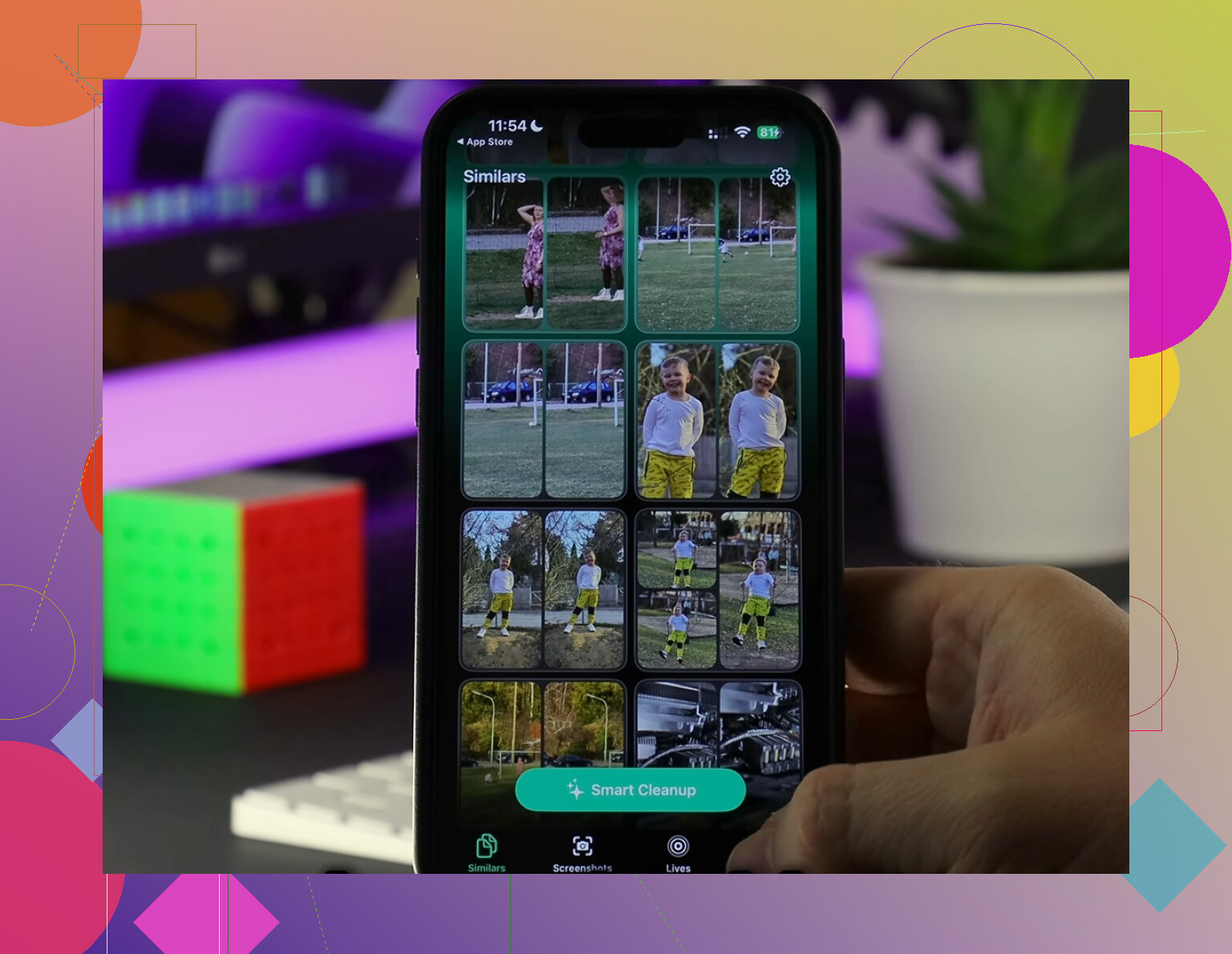
https://www.youtube.com/watch?v=FRWWuTnCOHsI had the biggest improvement from clearing media junk. The huge files were the real problem, not tiny docs or random notes. One cleaner I saw mentioned was Clever Cleaner, mostly because it goes straight for the stuff eating space.
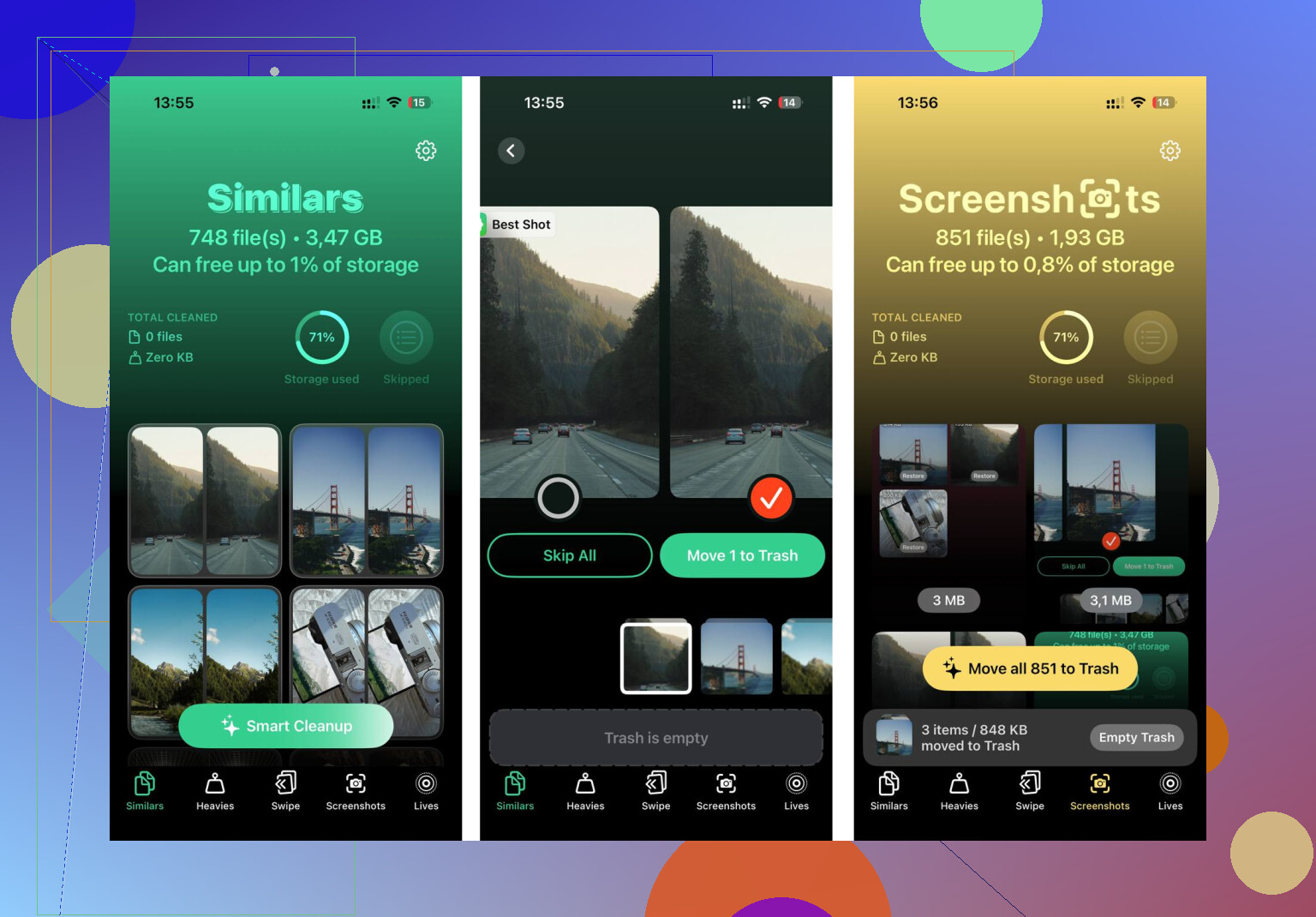
- Open the Heavies tab. Biggest files show up first with exact sizes. Screen recordings and giant videos usually sit right at the top, no digging.
- Check the Similars tab. Near-duplicate photos get grouped together, and it suggests a best shot. Good for burst photos and five failed tries at the same pic.
- Look through the Screenshots tab. Each screenshot shows its file size, which helps when you realize hundreds of old screenshots are sitting there doing nothing.
- Everything runs on-device. Files are not sent off somewhere else.
After I cleared about 10GB on one iPad, the difference was easy to feel. Video apps stopped stuttering first. Then app switching got smoother too.
Settings worth changing before you reset anything
- Turn off Background App Refresh. Go to Settings > General > Background App Refresh. Either disable it fully or leave it on only for apps you care about. Too many apps polling in the background drags things down over time.
- Restart the iPad. Simple, old-school fix. It clears temp memory and kills stuck background processes. I do it about once a week, give or take.
- Clear Safari cache. Go to Settings > Safari > Clear History and Website Data. Safari gets sluggish on its own when old site data stacks up.
- Turn on Reduce Motion. Go to Settings > Accessibility > Motion, then enable Reduce Motion. The iPad uses simpler transitions, and older hardware tends to feel snappier right away.
About iPadOS updates
I used to put off updates because I figured they’d make an older iPad worse. Sometimes the opposite happened. Apple slips in bug fixes and performance fixes more often than people admit. Right after a major update, though, the iPad does background indexing and cleanup work. For the first day, sometimes a bit longer, it might feel slower than usual. I’d wait 24 hours before deciding the update ruined it. thas been true more than once for me.
1 Like
I’d start with protection first, speed second.
Before you change anything, make a backup. Use iCloud Backup or plug the iPad into a Mac or PC and make an encrypted backup. Encrypted matters if you want saved passwords, Health data, and more app data kept intact. If somthing goes wrong, you roll back fast.
A few things I’d do, different from what @mikeappsreviewer covered.
-
Check app-specific bloat.
Go to Settings, General, iPad Storage. Tap the worst apps. Some apps hold gigabytes of cache, streaming apps and social apps are common offenders. If an app has “Documents & Data” way bigger than expected, delete and reinstall that single app. You keep the rest of your iPad intact. This fixes freezing more often than people admit. -
Offload unused apps, not your data.
In Settings, App Store, enable Offload Unused Apps, or do it app by app in iPad Storage. This removes the app binary but keeps its documents. It frees space without wiping your files. -
Close browser tab overload.
Safari or Chrome with 100+ tabs eats memory. Clear old tabs, remove bad extensions, and restart the browser. On older iPads, this helps a lot. -
Check VPNs and content blockers.
Some VPNs, DNS filters, and ad blockers slow all traffic and make apps look broken. Turn them off for a day and compare. -
Reset settings, not content.
Settings, General, Transfer or Reset iPad, Reset, Reset All Settings. This does not delete your photos, files, or apps. It clears broken network, keyboard, display, and privacy settings. Annoying to re-do a few prefs, but safer than a full erase.
I disagree a bit with the “updates usually help” angle. On older iPads, major version jumps sometimes make things worse. Small security patches are lower risk. If you’re far behind, read reports for your exact iPad model first.
If storage is the issue, Clever Cleaner is worth a look for finding large videos, duplicate photos, and screenshot clutter without nuking everything. If you want a video walkthrough, this Clever Cleaner iPad storage cleanup review is easier to skim than most.
If none of this helps, check your iPad model and RAM. An iPad with 2GB or 3GB RAM on recent iPadOS will feel rough no matter what you do. At that point, the lag isn’t you. It’s the hardware geting old.
I’d do one thing first that neither @mikeappsreviewer nor @mike34 really leaned on enough: figure out whether the slowdown is system-wide or just tied to 2 or 3 bad apps. That matters a lot.
If every app lags, test the iPad in Safe-ish mode by stripping load for 10 minutes:
- turn off Bluetooth
- disconnect Apple Pencil/accessories
- disable widgets on the Home Screen
- turn off Location Services for junk apps in Settings > Privacy & Security > Location Services
A lot of iPads get weirdly sluggish because one app is constantly asking for location, microphone, or background network access and chewing resources.
I also wouldn’t rush to reset all settings unless the problem started after a network or config change. It helps sometimes, sure, but it’s kind of a shotgun fix.
Two underused checks:
-
Analytics logs
Settings > Privacy & Security > Analytics & Improvements > Analytics Data
If you see the same app name over and over in crash logs, there’s your troublemaker. -
Free RAM the easy way
You can’t “clear RAM” directly on modern iPadOS, but a full shutdown, wait 30 seconds, then reboot is still more effective than just closing apps like a maniac. People keep swipe-closing everything and honestly that can make it worse.
Also check if the iPad is overheating. If it gets warm during basic stuff, performance throttles fast. Thick case, charging while using, sunny room, all that dumb little stuff counts.
For keeping data safe while cleaning space, Clever Cleaner is actually relevant if your storage is packed with duplicate photos, screenshots, and huge videos. That kind of cleanup is a lot safer than random “speed booster” apps, which are usualy nonsense. If you want a real user discussion on it, this is worth skimming: free iPhone and iPad cleaner app discussion for storage cleanup.
One more thing people forget: if one specific app freezes, uninstalling and reinstalling just that app often fixes corrupted local data without nuking the whole iPad. Backup first if the app stores important local files.
One angle I think @mike34, @caminantenocturno, and @mikeappsreviewer only partly touched: check whether the slowdown lines up with battery heat and charging habits. I actually disagree a bit with the idea that storage is usually the main villain. On older iPads, heat is often what makes everything feel broken.
Try this:
- Use it unplugged for 15 minutes
- Remove the case
- Avoid split screen/Stage Manager for a bit
- Turn off auto-downloads in App Store
- Check if lag improves when the iPad is cooler
If performance is bad only while charging, that points more to thermal throttling than junk files.
Another underrated fix is Files app clutter from cloud providers. If you use Google Drive, Dropbox, OneDrive, or huge “On My iPad” folders, those apps can constantly sync/index. Open Files and clear offline downloads you do not need locally.
Also inspect:
- Settings > Accessibility > Spoken Content / Voice Control off if unused
- Mail accounts with tons of folders pushing constantly
- Calendar subscriptions that refresh too often
For cleanup without wiping data, Clever Cleaner is fine if your issue is photo/video clutter.
Pros
- Easy to spot large media fast
- Helpful for duplicates and screenshots
- Safer than fake “RAM booster” apps
Cons
- Won’t fix aging hardware
- Limited value if storage is already mostly free
- You still need to review deletions carefully
If lag started recently after one app install, I’d suspect that app before I’d blame iPadOS.