My external hard drive suddenly stopped mounting on my Mac, even though Disk Utility still detects the hardware. I’ve tried reconnecting it, restarting my Mac, and using a different cable, but the drive still won’t show up in Finder. I need help figuring out if this is a macOS mounting issue, file system problem, or a sign the drive is failing because I’m worried about losing access to my files.
I quit assuming an external drive is dead the second macOS refuses to mount it. I’ve seen drives look awful at first glance, then turn out fine once the file system mess was dealt with. The pattern is usually the same. The disk shows up in Disk Utility, the LED flickers like normal, capacity looks close to right, and the Mac still talks to the hardware. It just won’t mount.
Before I touch repairs, I check the plain stuff first because I’ve wasted time skipping it.
Swap the cable. Plug the drive straight into the Mac. Skip the hub. Try a different USB or Thunderbolt port.
Check Finder settings and make sure external disks aren’t hidden. If the drive appears in Disk Utility and shows about the right size, I take it as a decent sign. The enclosure and drive are still responding.
Then comes the part people tend to rush past. If your files matter, stop trying to “fix” the disk first. Pull the data off it first.
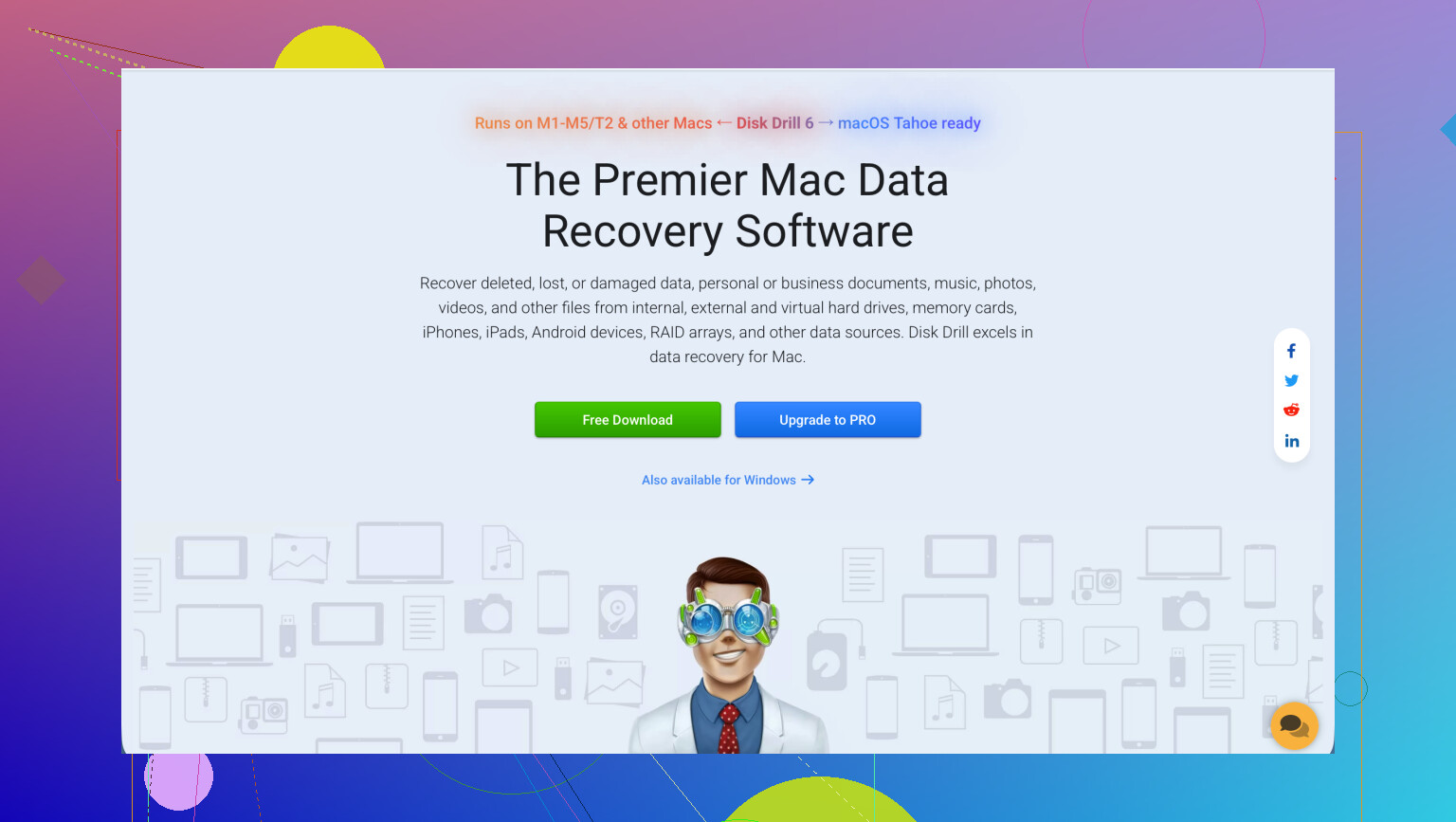
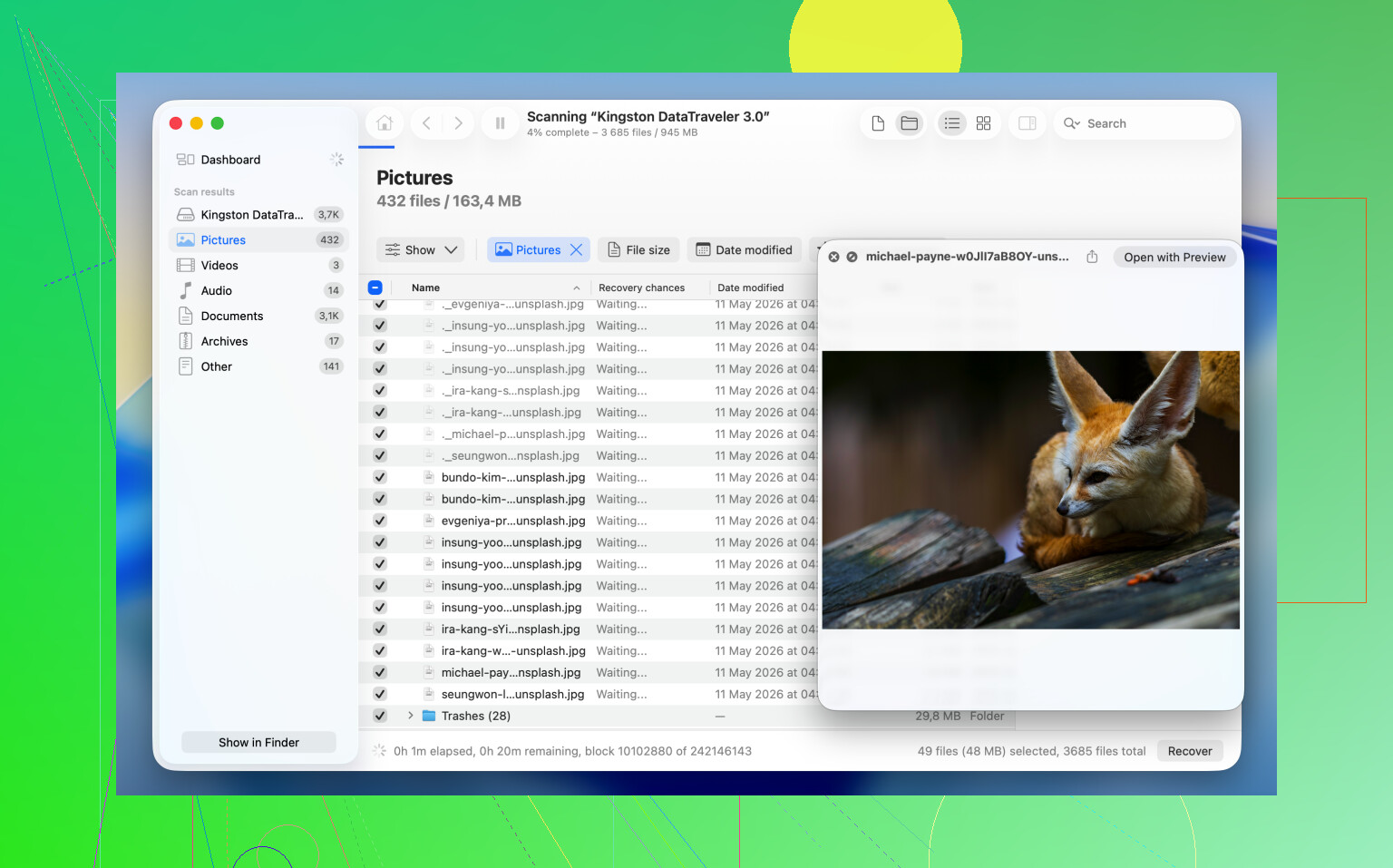
What worked best for me on unmounted drives was Disk Drill. Since it reads the storage device directly, I’ve had it pull files from disks macOS refused to mount at all.
If the data matters, this is the order I’d use:
1. Install and open Disk Drill.
2. Find the unmounted drive in the list.
3. Make a Byte-to-byte Backup first if the drive feels unstable, drops out, or acts weird.
4. Scan the original disk or scan the backup image instead.
5. Go through the files it finds.
6. Preview the important ones and make sure they open.
7. Recover everything onto another drive, not back to the same one.
Once the files live somewhere safe, you’ve got room to test fixes without sweating over every click.
If you don’t care about the old data and only want the drive usable again, the shortest path is often a reformat.
Reformat the drive
Formatting wipes the existing file system and builds a fresh one. It won’t bring your old files back, but it often clears up mount failures fast.
1. Open Disk Utility.
2. Click View > Show All Devices.
3. Pick the physical drive, not the volume indented under it.
4. Click Erase.
5. Enter a name.
6. Pick APFS if the drive stays in the Mac world.
7. Pick exFAT if you move between macOS and Windows.
8. Click Erase and wait.
9. Unplug the drive, then plug it back in.
If it mounts normally after this, I’d put my money on file system damage, not failed hardware.
If you want to take a shot at repair before wiping it, there are a few things worth trying. I’ve had mixed results. Minor corruption, sure. Heavy damage, not so much.
Method 1: Run First Aid on the physical disk
Sometimes the issue sits above the volume, in the partition map or disk structure, so I start from the top-level device.
1. Open Disk Utility.
2. Click View > Show All Devices.
3. Select the physical drive at the top of the sidebar.
4. Click First Aid.
5. Approve the repair prompt.
6. Let it finish.
7. Try mounting the disk again.
When the corruption is light, First Aid sometimes clears it without much drama.
Method 2: Kill a stuck fsck process
I ran into this more than once. The drive stayed unmounted because macOS got hung up during a background file system check and never finished the job.
1. Open Terminal.
2. Run: sudo pkill -f fsck
3. Press Return.
4. Enter your admin password if macOS asks for it.
5. Wait a few seconds.
6. See whether the drive mounts on its own.
This does not fix corruption. It only stops a stuck background process which might be blocking the mount. Crude, but I’ve seen it work.
Method 3: Mount it by hand in Terminal
Disk Utility fails in odd ways sometimes. I’ve had volumes mount from Terminal even when the GUI kept refusing.
1. Open Terminal.
2. Run: diskutil list
3. Find the identifier for your volume, something like disk4s1.
4. Run: diskutil mount /dev/disk4s1
5. Replace disk4s1 with your own identifier.
6. Press Return.
7. Read the error output if it fails.
If the command works, the volume mounts right away. If it doesn’t, Terminal usually gives you a more useful clue than Disk Utility does. Sometimes the error text is the only honest part of the whole process, heh.
One last thing: all of this assumes the drive itself still has decent hardware underneath. If it never shows in Disk Utility, reports the wrong size, clicks, drops connection over and over, or won’t spin up or power on, I’d stop treating it like a mount issue. At that point you’re likely looking at hardware trouble, and more poking around in software tends to make a bad day worse.
1 Like
If Disk Utility sees the drive, I’d check the mount state first, not jump straight to repair. I disagree a bit with @mikeappsreviewer on leading with fixes. I want the error message first.
Open Terminal and run:
diskutil list
Find your external disk. Then run:
diskutil info /dev/diskXsY
Look for:
Mount Point: Not mounted
File System Personality
Read-Only Media
S.M.A.R.T. status, if shown through the bridge
Then try:
diskutil mountDisk /dev/diskX
If macOS throws an error like “wrong fs type” or “invalid b-tree node size,” that points to file system damage. If it says “resource busy,” something on macOS is holding it.
Two other checks people skip:
-
Safe Mode.
Boot into Safe Mode, plug the drive in, and test. Login items and third-party disk tools mess with mounting more often than ppl think. -
Another Mac.
Same result on a second Mac usually means the issue lives on the drive. If it mounts there, your main Mac has a software conflict.
If the disk was used on Windows, disable NTFS helper apps for a minute. Old NTFS drivers break mounts after macOS updates. Seen it more than once.
If your data matters, use Disk Drill first and copy files off before you erase anything. If data does not matter, erase the whole physical disk and rebuild the partition map as GUID, not Master Boot Record.
Also worth reading, more fixes for an external hard drive that won’t mount on Mac.
If Disk Utility sees the hardware, I would not call the drive dead yet. That part I agree with from @mikeappsreviewer and @voyageurdubois. Where I differ a little is I’d check whether the volume is simply not auto-mounting because of macOS settings or permissions weirdness before I start poking at repairs.
A few things that are easy to miss:
- In Disk Utility, select the volume and click Mount manually if the button is available.
- In Finder, press Command + Shift + C and see if the disk shows there even if it’s missing from the desktop.
- Check System Settings > Privacy & Security and make sure you’re not dealing with some odd removable media permission block from security software.
- If you use Paragon, Tuxera, antivirus, cleanup apps, or “drive manager” junk, disable or uninstall them tempraorily. Those tools love breaking mounts after updates.
Also, look in Console.app right after plugging the drive in. Search for diskarbitrationd, fsck, or I/O error. That tells you way more than Disk Utility’s vague nonsense. If you see repeated I/O errors, slow down and stop testing too much.
One thing nobody mentions enough: try a new user account on your Mac. Seriously. If the drive mounts there, your main profile has a login item, Finder pref, or third-party extension interfering.
If the files matter, recover data first. Disk Drill is still one of the better options for a Mac external hard drive not mounting, especially when the device is detected but inaccessible. I would do recovery before any erase/repair attempts if the data is important.
After data is safe, if the partition map itself looks messed up, erase the physical disk and recreate it as GUID Partition Map, then APFS or exFAT depending on use.
If you want a walkthrough, this video guide for fixing an external hard drive that won’t mount on Mac covers the same general process in a cleaner way than most forum posts do.