I accidentally took a lot of pictures as Live Photos on my iPhone, and now they’re using more storage than I expected. I need a quick way to convert all Live Photos to still photos in one batch instead of editing them one by one. Is there a built-in iPhone method or an easy workaround that saves the regular photo versions?
Live Photos felt neat when I first used them. Then my library got messy. They eat more storage than a plain photo, and they still don’t replace a normal video. For most shots, I’d rather pick one. A still image for a receipt, note, pet pic. A real video if motion matters.
The annoying bit is how they stack up without much warning. I left Live Photo on, forgot about it, and months later I had loads of half-useful moving images clogging things up. You don’t need to throw them away outright, though. You can keep the photo part and drop the motion.
TL;DR
For a handful of files, use the Photos app option called Duplicate as Still Photo. If you want an Apple-only route for more than a few, Shortcuts works after some setup. If your library is packed with Live Photos and you want the quickest cleanup, Clever Cleaner is the easier path since it handles conversion and cleanup in one pass.
1. Duplicate as Still Photo
Best for: a small batch.
What happens: The Photos app pulls out the still frame and saves it as a separate regular image. Your original Live Photo stays there too. I liked this for checking the result first, but there’s a catch. Storage does not drop until you delete the Live version on your own.
Steps:
- Open the Live Photos album in Media Types.
- Tap Select, then pick the Live Photos you want.
- Tap the three-dot menu.
- Choose Duplicate.
- Tap Duplicate as Still Photo.
Keep in mind: This makes a second file. So if your goal is space, you still need to remove the original Live Photos, then clear Recently Deleted too. If you forget, iPhone keeps those deleted files around for 30 days. I missed this once and wondered why storage barely moved. dumb mistake.
2. Cleaner Apps
Best for: big libraries, hundreds or thousands of Live Photos.
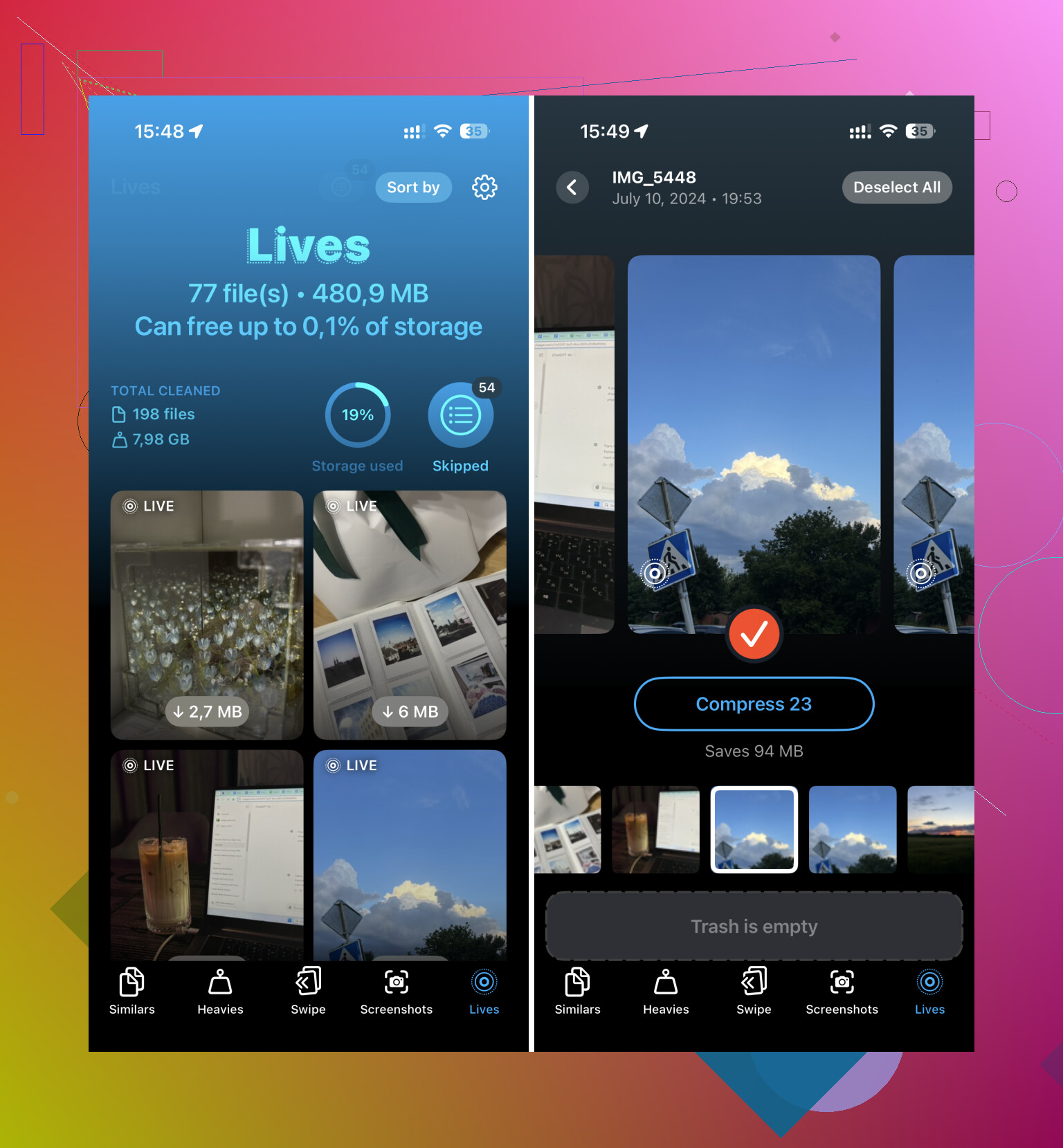
What happens: Clever Cleaner makes more sense when the job is bulk cleanup. It has a Lives section, scans the library, shows which files are taking the most room, and converts them into still images in one workflow. The part I found useful is simple. You don’t convert in one app, then hop back into Photos and clean manually for ages. It also helps remove the original moving versions after.
Steps:
- Open Clever Cleaner.
- Go to the Lives section.
- Sort by date or file size.
- Use Select All if you want everything processed.
- Tap Compress.
- Check how much storage you’ll get back.
- Pick whether to delete the original Live versions or leave them in temporary trash first.
Keep in mind: “Compress” here means the motion part gets removed and the still image stays in high quality. If your main goal is freeing storage fast, this is the least fussy option I’ve seen.
3. Using the Shortcuts App
Best for: people who want to stick with Apple tools and don’t mind a little setup.
What happens: Shortcuts lets you automate the conversion. Instead of opening Live Photos one by one, you set up a shortcut to find them and save still copies as normal image files. It gives you more control than the duplicate method. It also takes longer to set up, and you still have to delete the original Live Photos yourself after.
Steps:
- Open Shortcuts and create a new shortcut with the + button.
- Add the Find Photos action.
- Set the filter to Photo Type is Live Photo.
- Add Repeat with Each.
- Inside the loop, add Convert Image and set output to JPEG or HEIF.
- Add Save to Photo Album.
- Run the shortcut.
Keep in mind: This saves new still images, but it does not remove the original Live Photos. You still need to return to the Live Photos album and delete those by hand. A bit clunky, yeah.
After you finish the cleanup, turn Live Photo off so the same mess doesn’t come back. Open Camera, switch Live Photo off, then check Settings > Camera > Preserve Settings > Live Photo. If that setting is on, your iPhone remembers your choice instead of flipping Live Photo back on later.
1 Like
If your goal is true batch work on iPhone, the weak spot is Apple Photos. It does not offer a clean one-tap “convert all Live Photos to stills, then replace originals” flow. @mikeappsreviewer covered the duplicate route, and I kind of disagree with using Shortcuts for big batches. It works, but it’s fussy and easy to mess up if you have 500+ Lives.
My take:
-
If you want speed, use Clever Cleaner.
It’s the closest thing to bulk Live Photo to still photo conversion on iPhone without babysitting every file. You scan your library, filter Live Photos, convert in bulk, then clear the motion-heavy originals. That saves more space than editing one by one in Photos. Also useful if your storage is already packed, since Clever Cleaner helps clean iPhone storage by finding other large items too, not only Live Photos. -
If you want zero extra apps, use Files as a workaround.
Share selected Live Photos to Files, then export frames as still images from there or from another editor. It’s clunky, yeah, but for medium-size batches it’s less annoying than opening each photo. You still need to delete the old Live versions after, or the storage gain is fake. A lot of ppl miss this part. -
If your Mac is nearby, Image Capture or Photos on Mac is easier.
Import all Live Photos, export unmodified originals or still frames, sync back the stills, then wipe the Live versions from iPhone. More steps, less tapping. Better for huge libraries.
Also turn Live Photo off in Camera after you finish, or you’ll end up doing this agian next month.
If you want a quick visual walkthrough for cleaning up iPhone photo storage, this helps:
watch how to free up iPhone storage fast
Honestly, there still isn’t a true native batch “convert Live Photos to stills and replace originals” button on iPhone. That’s the annoying part.
@mikeappsreviewer and @voyageurdubois already covered the obvious routes, so I’d go at it a little differently:
If you want the least manual cleanup, use Clever Cleaner and treat this like a storage job, not an editing job. That’s why it works better for this specific mess. You’re not trying to artistically edit 300 shots, you’re trying to stop Live Photos from hogging space. It’s basically an iPhone storage cleaner app that can help you deal with bulky Live Photos faster than poking around Photos all afternoon.
One thing I’d push back on: exporting stuff around Files or Mac can work, sure, but for most people it turns into a weird extra project. Fine for archivists, not so fine if you just want your storage back today.
Also, before deleting anything, check whether you actually care about the motion on some pics. Kids, pets, candid shots, those are the ones ppl regret flattening later.
And if you want more cleanup ideas beyond Live Photos, this thread on best iPhone storage cleaner apps for freeing up space fast is worth a look.
Then disable Live in Camera and turn on Preserve Settings, or yep, you’ll be doing this agian in a month.
I’d skip the “convert” mindset entirely and use Save as Video only for the Live Photos you actually care about. For storage, the smarter trick is:
- favorite the Live Photos worth keeping
- batch delete the rest from the Live Photos album
- then recover only the key frame as screenshots or exports if needed
Why I’m saying this: a lot of people overfocus on preserving every still. In practice, tons of accidental Live Photos are junk duplicates anyway. That’s where @voyageurdubois, @hoshikuzu, and @mikeappsreviewer are all circling the same issue from different angles: Apple’s native tools are awkward at scale.
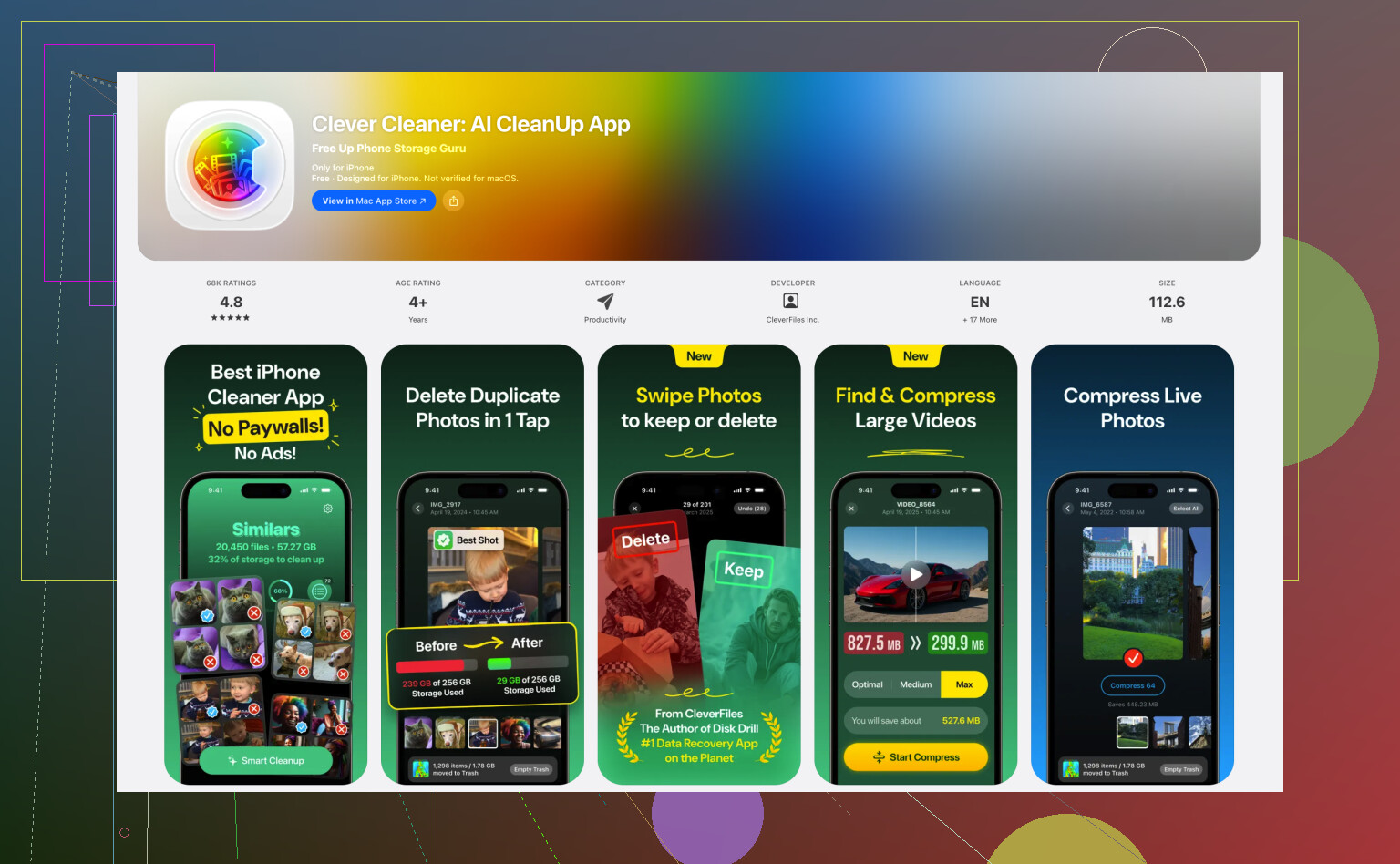
If you do want a bulk workflow on iPhone, Clever Cleaner is the more practical option.
Pros of Clever Cleaner
- faster for large Live Photo libraries
- easier to review storage impact first
- less tapping than Photos/Shortcuts
- combines cleanup with conversion workflow
Cons
- extra app permissions for your photo library
- you still need to double-check important memories before removing originals
- some people prefer Apple-only methods on principle
My honest take: for 50+ Live Photos, either use Clever Cleaner or just mass-delete and keep only the few that matter. Trying to “rescue” every accidental Live Photo into a still can become busywork fast.
Also, after cleanup:
Settings > Camera > Preserve Settings > Live Photo = ON
so when you switch Live off in Camera, it stays off.