My pen drive suddenly stopped opening after I plugged it into my laptop, and now it says the drive is corrupted and needs to be formatted. I have important photos and work documents on it that I didn’t back up, so I really need help with safe ways to recover files from a corrupted USB flash drive without making things worse.
Yeah, this sucks, but a corrupted USB drive is often less fatal than Windows makes it look. I’ve had drives show up as RAW, throw the “you need to format this disk” message, or refuse to open at all, and the files were still sitting there waiting to be pulled off.
First thing, do not hit Format. I wouldn’t run random repair tools yet either. Those fixes sometimes make the stick usable again, but they also tend to complicate recovery. If your files matter, pull the data off first. Deal with the drive later.
What kind of corruption are you dealing with?
From what I’ve seen, the cause matters a lot.
If the problem started after unsafe removal, a transfer stopping halfway, file system damage, malware, or some OS glitch, recovery at home often works fine.
If the USB is bent, gets hot fast, drops in and out, vanishes from Device Manager, or holds stuff you flat out cannot lose, I’d stop there. At that point I’d look at a pro recovery shop instead of poking it more.
For the usual software-side mess, I’d start with Disk Drill.
Why I’d use it here
The main reason is simple. It doesn’t rely fully on the file system being healthy. So if Windows calls the USB RAW or inaccessible, Disk Drill still has a decent shot at scanning the device itself and rebuilding files from what’s on the storage.
A few things I liked when dealing with damaged flash drives:
- It recognizes a lot of file types.
- Folder structure usually comes back in better shape than with some other tools I’ve tried.
- You get previews before recovery, which saves time because you can check whether a file opens before copying it out.
The part I’d pay attention to most on a flaky USB is the Byte-to-Byte Backup feature. Corrupted drives have a bad habit of getting worse mid-process. I’ve seen one work fine in the morning and stop responding by evening. If you image it first, you work from the copy instead of hammering the original stick over and over.
The steps I’d follow
- Install Disk Drill on your computer. Not on the USB.
- Plug in the corrupted USB drive.
- Open Disk Drill and go to Byte-to-Byte Backup.
- Select the USB and make a full image of it.
- After the image finishes, mount or attach the image inside Disk Drill.
- Run the scan against the image file.
- Preview what it finds.
- Recover the files to a different drive.
If you recover from the image instead of the original USB, you remove a lot of risk from the process. The physical stick stops being part of every scan, which matters when the device is unstable.
Only after the files are safe
Once your important data is off, then I’d bother trying to fix the USB itself.
- Run Windows Error Checking or CHKDSK.
- Give it a new drive letter if Windows is acting weird with detection.
- Reinstall USB drivers if the device appears inconsistently.
- Format it and test with junk files first, nothing important.
If the corruption comes back after formatting, files start vanishing, writes fail, or the drive keeps acting flaky, I’d retire it. No debate. Flash storage wears out, and once a USB starts doing this more than once, I stop trusting it. Learned tht one the hard way.
1 Like
Do not format it.
I agree with @mikeappsreviewer on one big point, stop writing to the pen drive. I disagree on CHKDSK as an early move. If your files matter, CHKDSK is a repair tool, not a recovery tool. It edits the file system. On a damaged USB, tht sometimes means lost filenames, broken folders, or files turned into junk.
What I’d do first:
- Try a different USB port, then a different PC.
- Check Disk Management. If the drive shows the right size, recovery odds are better.
- If it shows as RAW, unallocated, or asks to format, scan it before any repair.
- Recover files to your internal drive or another external drive, never back to the pen drive.
Disk Drill is a solid pick here because it handles corrupted USB drives well and lets you preview photos and docs before recovery. If the stick disconnects a lot, gets hot, or reads as 0 bytes, stop messing with it. Those are bad signs.
One more thing. If your photos are important, sort results by file type first, JPEG, PNG, DOCX, PDF. This saves time and gets the must-keep stuff off fast.
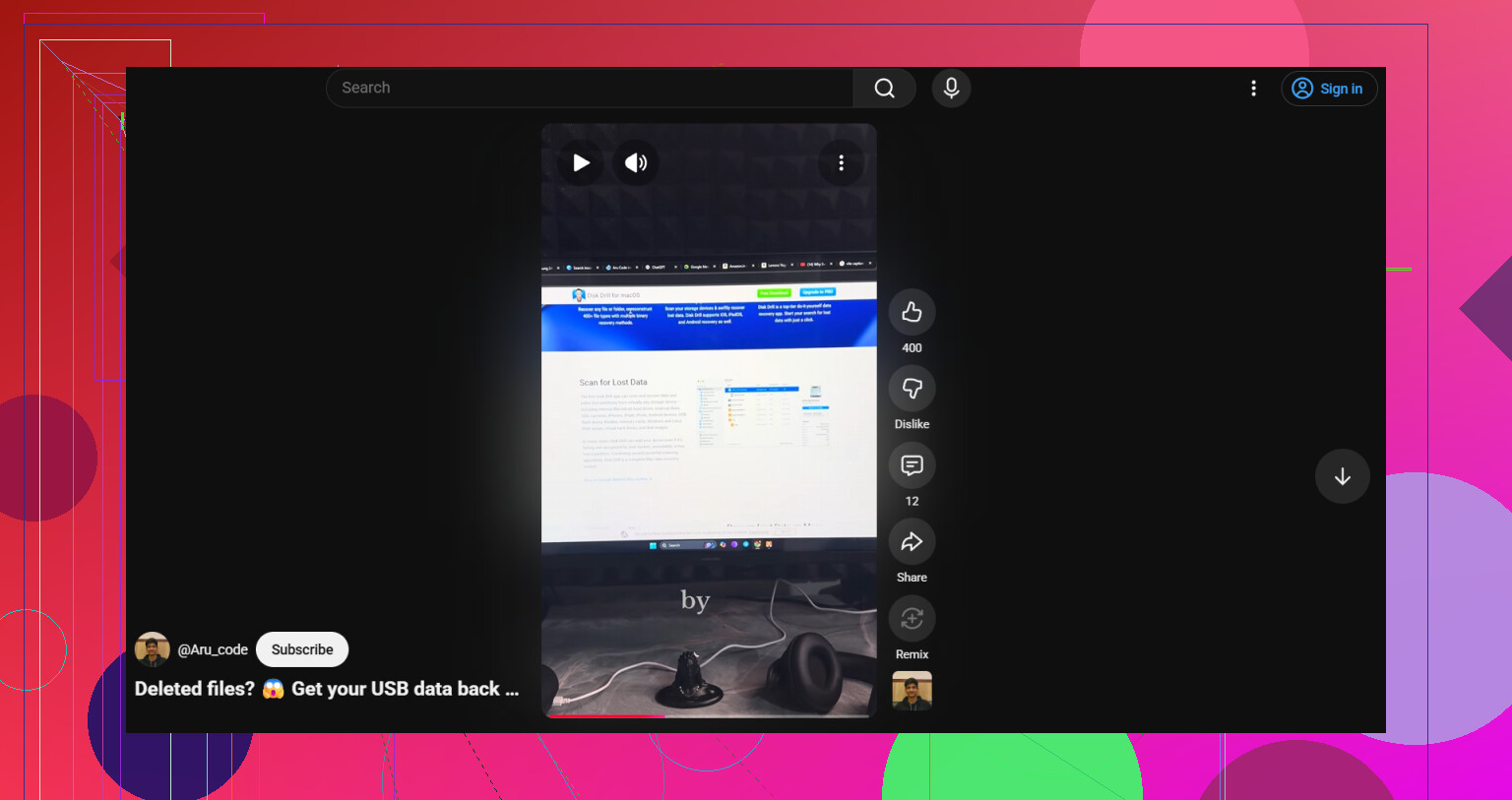
If you want a quick visual walkthrough, this USB pen drive data recovery video tutorial is easy to follow.
After recovery, format the drive and test it with throwaway files. If it fails again, toss it. Pen drives are cheap. Lost data isnt.
Do not format it yet. That pop-up is Windows basically shrugging and saying “not my problem.”
I’m mostly with @mikeappsreviewer and @viajeroceleste on avoiding repair-first moves, but I’d add one thing they didn’t really stress: check whether the problem is the USB enclosure logic vs the filesystem. Open Disk Management and look at the pen drive status:
- shows correct capacity = better sign
- shows No Media = much worse
- shows 0 bytes = often hardware failure
- asks to initialize = stop and think before clicking anything
Also, before running full recovery, try copying a single small file if the drive still opens intermittently. Sometimes you can grab the most important docs first before the device fully dies. I know some ppl say don’t touch it at all, but on a semi-readable stick, triage can matter.
If it stays inaccessible, use recovery software that can scan damaged USB media. Disk Drill is one of the better options for corrupted pen drive recovery because it can scan beyond the broken file system, preview recoverable photos/docs, and work from a disk image instead of the failing USB itself. That part matters more than fancy marketing.
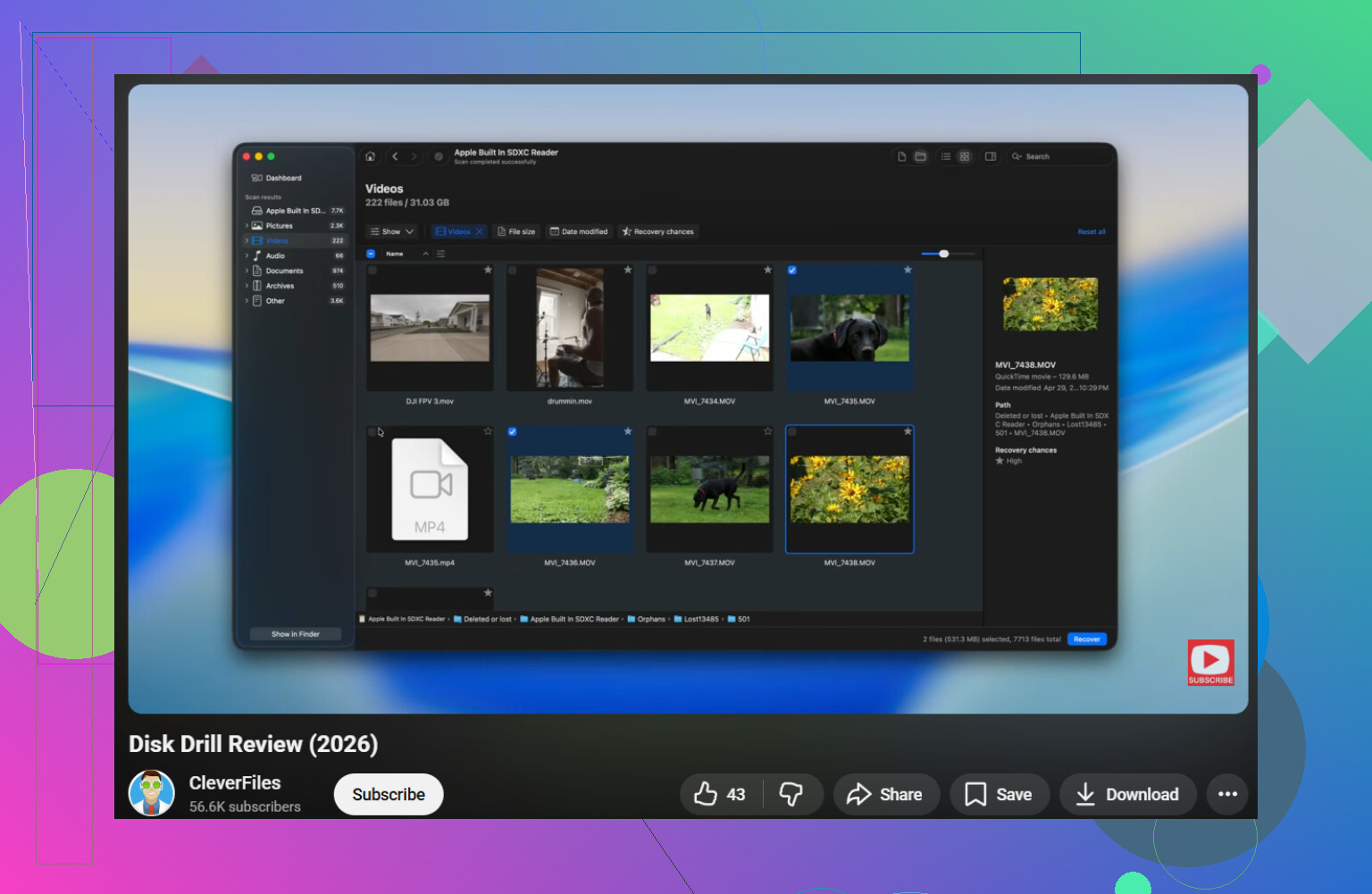
A solid Disk Drill review takeaway is this: for USB recovery, the useful features are deep scan, image-based recovery, and file preview, not just “recover deleted files.” If you want a quick walkthrough, this video is decent: watch how corrupted USB drive recovery works.
One place I slightly disagree with the usual advice: CHKDSK is not evil, it’s just late-stage, after recovery attempts. First recover, then experiment.
If the drive gets hot, disconnects randomly, or vanishes from Windows, stop. At that point you can make it worse real fast. Pen drives fail in dumb, abrupt ways. Kinda brutal, tbh.
I’d add one thing the replies from @viajeroceleste, @nachtschatten, and @mikeappsreviewer only touched lightly: check the drive on Linux if Windows is the one throwing the fit. Sometimes Windows says “format this,” but a Linux live USB can still mount the stick read-only and let you copy stuff off without touching the file system. That’s often safer than jumping straight into repairs.
My order would be:
- Stop using the pen drive.
- Test whether Linux can read it.
- If not, make an image if the device stays connected.
- Then scan that image with Disk Drill or similar.
I slightly disagree with the “try copying one file” advice unless the drive is stable. If it’s dropping out, every extra read can be the one that kills it.
Disk Drill pros:
- good previews
- image-based recovery
- handles damaged file systems well
Cons:
- deep scans can take a while
- full recovery features are paid
- on severe hardware failure, software won’t save you
If the drive shows “No Media” or 0 bytes consistently, skip software and think lab recovery.