I accidentally permanently deleted important files on my Windows 11 PC and already emptied the Recycle Bin. I’m trying to find a free way to recover them before they’re overwritten because some of the documents and photos are really important. I need help figuring out what recovery options actually work on Windows 11 without paying for software.
I’ve had this happen, and yeah, it hits fast when a file vanishes. On Windows 11, a permanently deleted file is not always gone for good. If the space it used has not been overwritten yet, you still have a shot.
First thing I’d do, stop using the drive as much as possible. Don’t keep installing stuff. Don’t copy movies over. Don’t download a pile of updates. Every write gives Windows another chance to reuse the exact blocks where your file used to sit. On an SSD, I’d move even faster. TRIM tends to clear deleted data behind the scenes, and once that happens, recovery gets ugly or dead ends.
Check the easy places first
Before you throw recovery tools at it, spend a few minutes checking the boring stuff people forget:
- OneDrive
- File History
- Previous Versions
- any cloud backup you set up and forgot about
- an old external drive sitting in a drawer
I’ve seen people tear through recovery scans for an hour, then find the file sitting in OneDrive recycle or an old backup. Way less risk. Way less mess.
When backups fail
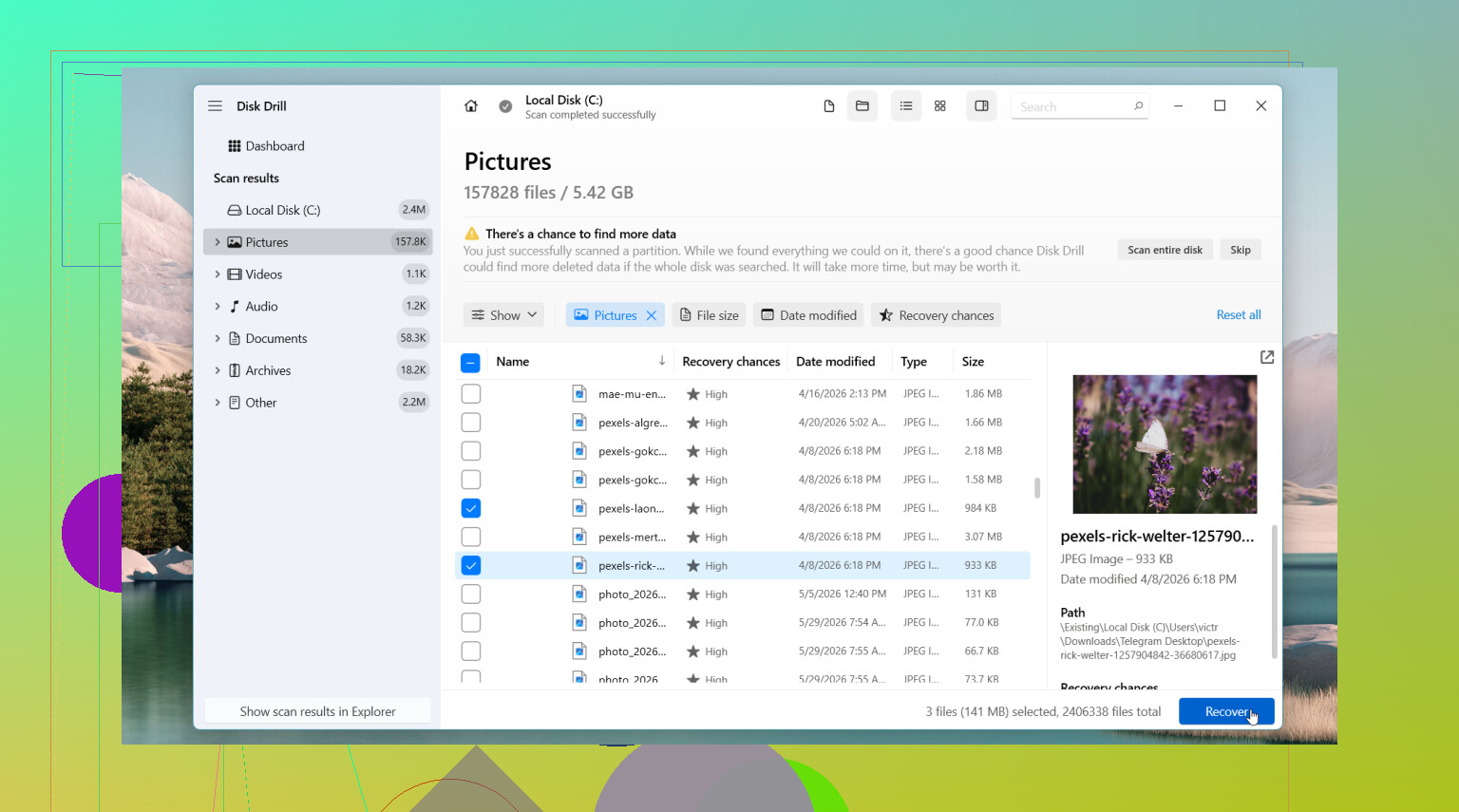
If those come up empty, I’d move to recovery software. The one I’d start with is Disk Drill. What I liked about it was simple, it usually pulls results in a form you can work with. Original filenames often stay intact. Folder paths too, sometimes. That matters more than people think, because sorting 4,000 files named file0001.jpg through file4000.jpg is a bad evening.
How I’d do it
- Install Disk Drill to a different drive if you have one.
- Run a scan on the drive where the deletion happened.
- Filter or search through results until you spot what you need.
- Preview the important files first.
- Recover everything to another drive, not back onto the same one.
The Windows release lets you scan and preview without a limit, and the free recovery cap is 100 MB.
Other tools worth a look
If the issue is bigger than a plain delete job, I’d look elsewhere too.
DiskGenius helped me more in cases with messed up partitions, RAW drives, or file system damage. Different kind of problem, different kind of tool.
Windows File Recovery is Microsoft’s own utility. It costs nothing, which is nice. The tradeoff is you work from the command line. If you’re fine typing commands and reading switches, it does the job. If not, it feels annoyng fast.
When I’d stop and hand it off
I wouldn’t keep poking at the drive if it starts clicking, dropping offline, disappearing from Windows, or holding stuff you cannot afford to lose. Same if it spins up weird or throws read errors all over the place. At that point, I’d lean toward a professional data recovery service before making it worse.
Best case, this is only a deletion issue. Then speed matters. Use the drive less, start sooner, and your odds tend to be better.

1 Like
Yes, free recovery is still possible on Windows 11, but your odds drop fast.
I agree with @mikeappsreviewer on one big point, stop writing to the drive. I disagree a bit on tool order though. If you want fully free first, try Microsoft’s Windows File Recovery before anything else. It’s ugly, but it costs $0 and works well for deleted DOCX, JPG, PDF, and PNG files when the drive is still healthy.
Fast checklist:
- Check Office app recent files.
- Check OneDrive web recycle bin, not only local folders.
- Search your PC for file extnsions like .docx or .jpg.
- Run Windows File Recovery.
- If the results are messy, scan with Disk Drill and preview what’s recoverable.
Example command:
winfr C: D: /regular /n \Users\YourName\Documents*.docx
Recover to a different drive. External USB is fine.
One more thing people miss, some apps keep temp copies. Word, Excel, and Photoshop do this. Look in:
C:\Users\YourName\AppData\Local\Temp
If the files matter a lot and your PC uses an SSD, move fast. TRIM is brutal. If you want a simple visual walkthrough, this Windows 11 file recovery guide is easier to follow than a wall of text.
If Windows File Recovery finds nothing, Disk Drill is a solid next scan. Free tier is small, but the preview helps you see if your files are still there befor you waste more time.

Yes, sometimes. “Permanently deleted” in Windows 11 usually just means the file entry was removed, not that the data instantly vanished. But I’ll disagree slightly with @mikeappsreviewer and @boswandelaar on one thing: I would not spend too long hopping between too many recovery attempts on the same SSD if the files are critical. That can backfire fast.
A couple things people haven’t really emphasized:
- Check the file type’s own recovery area. Word, Excel, and some photo editors keep autosave or autorecovery copies in their app folders, not just Temp.
- If the files were on your Desktop/Documents and OneDrive backup was ever enabled, check the OneDrive website’s second-stage recycle area too.
- Look for thumbnail traces or exported copies in odd places like Pictures, Downloads, WhatsApp/Desktop app folders, email attachments, or recent-project folders. I’ve “recovered” missing pics that way more than once, lol.
For actually free recovery, Windows File Recovery is still the pure free option. If you want somthing easier to inspect, Disk Drill is useful because it lets you preview what is still recoverable before you decide what to do. That matters a lot with photos and docs.
Very important:
- recover to another drive
- stop using the PC as much as possible
- if it’s an SSD, act now
Also, this is a decent read on Windows 11 SSD file recovery: Reddit discussion on recovering deleted files from the Recycle Bin on Windows 11 SSDs.
If the files are super important and the drive starts acting weird, skip freeware experiments and go straight to a pro. That’s the unfun but honest answer.